

The volunteer coordinator at a community food bank sends out the same sign-up sheet every month. Half the people print it, fill it in by hand, take a crooked photo with their phone and email it back. The other half type their answers into a Word file and break the layout. Sorting through the replies takes her a whole Saturday. Learning how to make a fillable PDF would fix most of that: one clean form, typed answers in the right boxes and a file that looks the same on every screen.
The good news is that you do not need expensive software or design skills. This guide explains how to make a fillable PDF four different ways, from completely free options to the paid tool most offices use. You will also learn which field types to use, how to test your form before you send it and how to fix the problems people run into most often.
Quick answer
To make a fillable PDF for free, build the form in LibreOffice Writer with its Form Controls toolbar and export it with the Create PDF form option checked, or upload an existing PDF to PDFescape and add fields online. If you already pay for Adobe Acrobat Pro, open the file and choose Prepare a form so Acrobat detects the fields for you. Word alone will not do it: its “Save as PDF” flattens form fields into plain text.
What is a fillable PDF?
A fillable PDF is a PDF that contains interactive form fields: text boxes you can type in, check boxes you can tick, drop-down lists and buttons. Anyone who opens it in a capable PDF reader can click a field, type an answer and save or send the completed form.
A “flat” PDF looks like a form but has no fields. The lines and boxes are just part of the printed page. People can still fill a flat form with a tool like Fill & Sign, which places loose text on top of the page, but the answers are not stored in named fields and nothing stops a reply from drifting outside the box. Adobe’s help page on filling forms describes this same difference between interactive forms and flat forms (Adobe Help: Fill in PDF forms).
When you learn how to make a fillable PDF, you are really learning how to add those named fields to a page. Every method below does the same thing in a different way.
Before you start: plan your form on paper
Ten minutes of planning saves an hour of moving boxes around later. Before you open any software:
- List every question. Write down what you need to collect, in the order a person would naturally answer it.
- Pick a field type for each question. Free text, yes/no, one choice from a list or several choices. The field type table below helps.
- Cut what you do not need. Every extra field lowers the chance that people finish the form. Do not ask for sensitive data such as a Social Security number unless you truly need it and can store it safely.
- Decide how the form comes back. Email attachment, upload to a shared folder or printed copy. This affects how much room people need and whether you want a signature line.
- Leave space. A name box needs room for long names. A comments box needs several lines.
If you are starting from a paper form, scan it first so you have a clean PDF to work from. Our guide on how to scan documents with your phone shows how to get a straight, readable scan in under a minute.
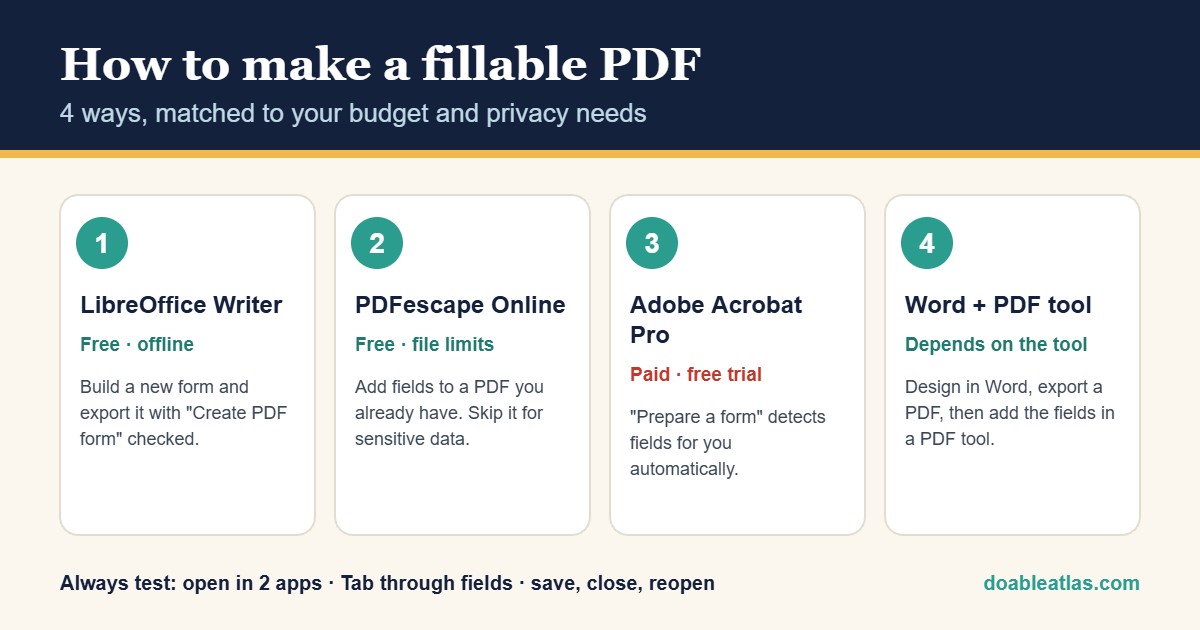
Choosing your method: which way to make a fillable PDF fits you?
| Method | Cost | Works offline | Best for |
|---|---|---|---|
| LibreOffice Writer | Free, open source | Yes | Building a new form from scratch, private data |
| PDFescape Online | Free with file limits | No (browser) | Adding fields to a PDF you already have |
| Adobe Acrobat Pro | Paid subscription (trial available) | Yes | Frequent forms, automatic field detection, calculations |
| Word layout + PDF editor | Depends on the editor | Partly | Teams that design documents in Word |
Short version: if you want a free, private answer to how to make a fillable PDF, start with LibreOffice. If the form already exists as a PDF and nothing on it is sensitive, PDFescape is the fastest free route. If you make forms every week, Acrobat Pro will save you time.
Method 1: How to make a fillable PDF for free with LibreOffice Writer
LibreOffice is a free, open-source office suite for Windows, Mac and Linux. Its word processor, Writer, has built-in form controls, and its PDF export can turn those controls into real PDF form fields. Everything happens on your computer, so this is the best free choice for forms that will hold personal information.
Step 1: Set up the page
Open LibreOffice Writer and start a blank document. Type your title, instructions and the labels for each question (“Full name”, “Email”, “T-shirt size”) just as you want them to appear. A simple two-column table, labels on the left and empty cells on the right, keeps everything aligned.
Step 2: Turn on the form toolbars
Go to View → Toolbars and switch on Form Controls and Form Design. Make sure Design Mode is on; while it is on, clicking a control selects it instead of using it.
Step 3: Draw your fields
Choose a control, such as Text Box, Check Box, Option Button or List Box, then drag on the page to draw it next to its label. Right-click a field and choose Control Properties to set its name, font size, border and, for list boxes, the list entries. Give every field a short, unique name such as full_name or tshirt_size; the name is what identifies the answer later.
Step 4: Export with “Create PDF form” checked
Save the document in LibreOffice’s own format first (.odt) so you can edit it later. Then choose File → Export As → Export as PDF. On the General tab, tick Create PDF form and click Export. LibreOffice’s help documents this option in its PDF export settings (LibreOffice Help: Export as PDF). If you forget the checkbox, the fields will be flattened and the PDF will not be fillable.
Step 5: Test it
Open the exported file in a different program, such as Adobe Acrobat Reader or your web browser, and fill in every field. Use the pre-send checklist further down this page.
Good to know: LibreOffice can feel unfamiliar if you are used to Word, and positioning fields precisely takes a little patience. Turning on the grid (View → Grid and Helplines) and snapping fields to it helps a lot.
Method 2: How to make a fillable PDF from an existing file with PDFescape
If you already have the form as a PDF, for example a scan of a paper form or a PDF someone emailed you, an online form designer can add fields on top of it without rebuilding anything. PDFescape is one of the long-running free options. Its free online plan includes creating basic PDF forms and downloading the result without a watermark, with a maximum file size of 10 MB and up to 10 stored files (PDFescape plan comparison).
- Go to PDFescape Online and upload your PDF.
- Open the Form Field tool and pick a field type: text, check box, radio button, list or drop-down.
- Drag to draw each field over the matching blank line or box on the page.
- Double-click a field to set its name and options, such as the choices in a drop-down list.
- Save and download the PDF, then test it in another reader.
Privacy note: online tools mean uploading your file to someone else’s server. That is fine for a bake-sale sign-up sheet. For forms that include medical details, financial information or ID numbers, use an offline method instead. The same advice appears in our roundup of the best free PDF tools.
Plans and limits change, so check the provider’s current plan page before you rely on a free tier for a big project.
Method 3: How to make a fillable PDF in Adobe Acrobat Pro
Adobe Acrobat Pro is the standard tool in many offices, and if you make forms all day it is the fastest answer to how to make a fillable PDF. Its biggest advantage is automatic field detection. Point it at a document with blank lines and empty table cells, and it guesses where the fields should go.
- Open Acrobat and choose All tools → Prepare a form.
- Select the file you want to convert: a PDF, a Word or Excel file, or a scan. You can also start from a blank page.
- Click Create form (or Start). Acrobat analyzes the page and adds fields where it sees blanks.
- Review every field. Rename fields with clear names, delete ones you do not need and add missing ones from the toolbar.
- Click Preview to try the form, then save it.
Adobe’s own guide walks through these steps for both new and existing documents (Adobe Help: Create PDF forms). Acrobat Pro can also add calculations, date formatting, validation rules and signature fields.
The catch: Prepare a form is a paid feature. The free Adobe Acrobat Reader can fill in forms, but it cannot create them; Adobe’s support staff confirm that the Prepare form tool belongs to Acrobat Pro and is not in Reader (Adobe Community). If you only need to make one or two forms, Adobe’s free trial may be enough. Just set a reminder to cancel before it renews if you do not plan to keep it.
Method 4: How to make a fillable PDF from a Word document
Many people design forms in Microsoft Word, add text boxes or check boxes from the Developer tab and then choose Save as PDF. The result looks right, but the fields usually do not work. Word’s PDF export does not turn its form controls into PDF form fields, a limitation that comes up again and again on Microsoft’s own Q&A forum (Microsoft Q&A).
The reliable workflow is a two-step one:
- Design in Word. Lay out the title, instructions, labels and lines or table cells where answers go. Skip Word’s form controls; they will not survive the export anyway.
- Export a clean PDF. Use File → Save As → PDF.
- Add the fields in a PDF tool. Open that PDF in PDFescape (Method 2) or Acrobat Pro (Method 3) and add the fields on top.
This keeps the polished look of a Word document and gives you fields that actually work. It is the most dependable answer to how to make a fillable PDF when your team lives in Word.
Which form field should you use when you make a fillable PDF?
Choosing the right field type makes a form faster to fill and easier to read. Use this cheat card while you build:
Ready-made field lists you can copy
Not sure what to include? These lists show how to make a fillable PDF for common situations. Start from one and trim it to fit.
Test your form before you send it: the pre-send checklist
Knowing how to make a fillable PDF is only half the job. The most common reason a form fails is that nobody tested it outside the program that made it. Work through this list every time:
- ☐ Open the file in at least two programs, such as Adobe Acrobat Reader and a web browser.
- ☐ Click into every field and type a long answer. Does the text fit or shrink sensibly?
- ☐ Press Tab from the first field to the last. Does the cursor move in a logical order?
- ☐ Tick and untick every check box. In each radio group, can only one option be chosen?
- ☐ Open every drop-down. Are the choices spelled correctly and in a sensible order?
- ☐ Save the filled copy, close it and reopen it. Are the answers still there?
- ☐ Print a filled copy. Does everything fit on the page?
- ☐ Send it to one friend or colleague first and ask them to fill it on their own device.
Quick quiz: which method is right for you?
Not sure how to make a fillable PDF that fits your situation? Answer each question, then tap to reveal the suggestion.
1. The form will collect medical or financial details. Which method should you use?
An offline tool: LibreOffice Writer (free) or Acrobat Pro (paid). Keep sensitive files off upload sites.
2. You have a scanned paper form and need it fillable today, for free.
PDFescape Online, as long as the file is under the free size limit and contains nothing sensitive.
3. You build a new form every week and want fields detected automatically.
Adobe Acrobat Pro’s Prepare a form tool. The time it saves usually justifies the subscription.
4. True or false: Word’s “Save as PDF” keeps Developer-tab check boxes clickable.
False. The export flattens them. Design in Word, then add the fields in a PDF tool.
Common problems and how to fix them
Even when you know how to make a fillable PDF, small setup mistakes can break a form. These are the usual suspects.
| Problem | Likely cause | Fix |
|---|---|---|
| The PDF opens but nothing is clickable | Fields were flattened during export | In LibreOffice, re-export with “Create PDF form” ticked; from Word, add fields in a PDF tool. |
| Fields work in one app but not another | Some viewers support only basic form features | Ask people to use Adobe Acrobat Reader, and keep the form to simple field types. |
| Answers disappear after saving | The viewer saved a copy without form data | Fill and save in Acrobat Reader, or use the app’s Save As option rather than Print. |
| Text is tiny or cut off | Field is too small or font size is fixed | Make the field bigger or set font size to Auto in field properties. |
| Tab key jumps around the page | Fields were drawn out of order | Set the tab order in the field properties, or redraw fields top to bottom. |
| Several radio buttons can be selected at once | Each button has its own group name | Give every button in the question the same group name. |
What about filling PDFs on a Mac or phone?
Making a form and filling one are different jobs. Apple’s Preview app on the Mac can fill in fields on an interactive PDF and add a signature, and for a flat PDF it lets you add a text box instead (Apple Support: Fill out and sign PDF forms in Preview). Preview does not have a tool for drawing new form fields, so if you are wondering how to make a fillable PDF on a Mac, the answer is LibreOffice, PDFescape or Acrobat Pro, with Preview only for testing.
Most people will open your form on a phone at some point, so test it there too. Keep fields large, avoid tiny check boxes and put the most important questions near the top.
Sending, collecting and storing completed forms
Learning how to make a fillable PDF is step one; collecting the answers is step two. Once your form is ready, think about where the answers will end up:
- Name files consistently. Ask people to save their copy as
LastName-FormName-Date.pdf. Our guide on how to organize digital files explains a simple naming rule that keeps replies easy to find. - Use one inbox folder or filter. Replies scattered across your inbox are easy to miss. A single filter that files every reply into one folder helps; see how to manage email overload.
- Track answers in a spreadsheet. For more than a handful of replies, copy the key answers into a simple sheet. The structure in how to create a simple budget spreadsheet works just as well for a sign-up tracker.
- Protect sensitive files. If a form collects private details, store the replies in a password-protected location and lock your accounts with strong, unique passwords. A password manager makes that painless, and our guide to creating strong passwords covers the rest.
- Clean up afterward. Delete replies you no longer need and back up the ones you must keep. The digital declutter checklist is a good end-of-project routine.
How to make a fillable PDF: frequently asked questions
Can I make a fillable PDF for free?
Yes. LibreOffice Writer is completely free and works offline, and PDFescape’s free online plan can add fields to an existing PDF within its file limits. Adobe Acrobat Pro also offers a free trial if you only need it briefly.
Can Adobe Acrobat Reader make a fillable PDF?
No. Acrobat Reader is free for viewing, filling and signing, but creating form fields requires Acrobat Pro’s Prepare a form tool.
Why does my Word form stop working after I save it as a PDF?
Word’s PDF export does not convert its form controls into PDF form fields, so they become static text and lines. Design the layout in Word, export the PDF and then add the fields in a PDF tool.
Can Google Docs make a fillable PDF?
Google Docs does not have a tool for adding PDF form fields, so a PDF downloaded from Docs is a flat document. If you mainly want to collect answers online, a web form such as Google Forms is often simpler than a PDF. If you need a PDF, download the layout from Docs and add fields with one of the methods above.
Is it safe to use an online tool to make a fillable PDF?
For everyday forms with no sensitive information, reputable online tools are convenient. For anything involving health, money or identity details, use an offline tool so the file never leaves your computer.
How do I make a fillable PDF from a scanned paper form?
Scan the page as cleanly as possible, then open the scan in Acrobat Pro, which can detect fields automatically, or in PDFescape, where you draw fields over the blanks by hand.
Glossary
These terms come up whenever you research how to make a fillable PDF.
- Form field: an interactive area in a PDF where someone can type, tick or choose an answer.
- Flat PDF: a PDF with no fields; the boxes and lines are only part of the page image.
- Flattening: converting fields into static content so they can no longer be edited.
- Tab order: the sequence in which the cursor moves between fields when someone presses Tab.
- Radio group: a set of options where only one can be selected.
Your next step
Now you know how to make a fillable PDF with the tool that fits your budget and your privacy needs. Pick one form you send out often, such as a sign-up sheet, an intake form or a permission slip, and rebuild it today with the method that suits you. Test it with the checklist above, send it to one person first and enjoy getting answers back in neat, typed boxes instead of blurry photos. If you work with PDFs a lot, keep our list of the best free productivity tools handy for the rest of your workflow.