

You open your inbox to check one thing. Forty minutes later you have answered six low-priority messages, archived a few newsletters and still not replied to the one email that actually mattered. Sound familiar? Email was supposed to make communication easier, but for many people it has become a second job that never ends.
This guide shows you how to manage email overload with a practical system: a fast triage method for every message, filters and rules that sort mail before you see it, a schedule that stops email from eating your day and reply templates that cut writing time. Research on email and stress is included so you know why each step works.
Quick answer
How to manage email overload: check email at set times instead of all day, turn off notifications, unsubscribe from mail you never read, use filters to sort newsletters and receipts automatically and decide on each message immediately: delete it, do it if it takes under two minutes, delegate it or schedule it. Keep a short “waiting for” folder and use reply templates for common answers.
In this guide
Why email overload feels so exhausting
Email overload is not just about volume. It is about interruptions and open loops. Every unread message is a small decision waiting to be made, and every notification pulls your attention away from deeper work.
Research backs this up. In a field experiment, researchers asked participants to check email only three times a day for one week, and to check it as often as they liked the other week. When people checked less often, they reported lower daily stress (Kushlev & Dunn, 2015). Another study that cut office workers off from email for several days found they switched between windows less often and experienced less stress, measured with heart-rate monitors (Mark, Voida & Cardello, 2012).
The lesson is not that email is bad. It is that constant checking is costly. Learning how to manage email overload starts with controlling when email gets your attention.
Step 1: Stop the constant checking
Before you change anything inside your inbox, change how often you visit it.
- Turn off email notifications on your phone and computer. Keep alerts only for a short list of VIP senders if your job requires it.
- Pick two to four email times a day, for example 9:00, 12:30 and 4:00. Put them on your calendar.
- Close the email tab outside those times. If it is open, you will check it.
- Do your most important work first, before the first email session, when your attention is freshest.
If people expect instant replies, tell them your new routine or add a short line to your signature, such as “I check email at set times each day; for urgent issues, please call.” Most people adapt quickly.
Step 2: Triage every email with the 4D method
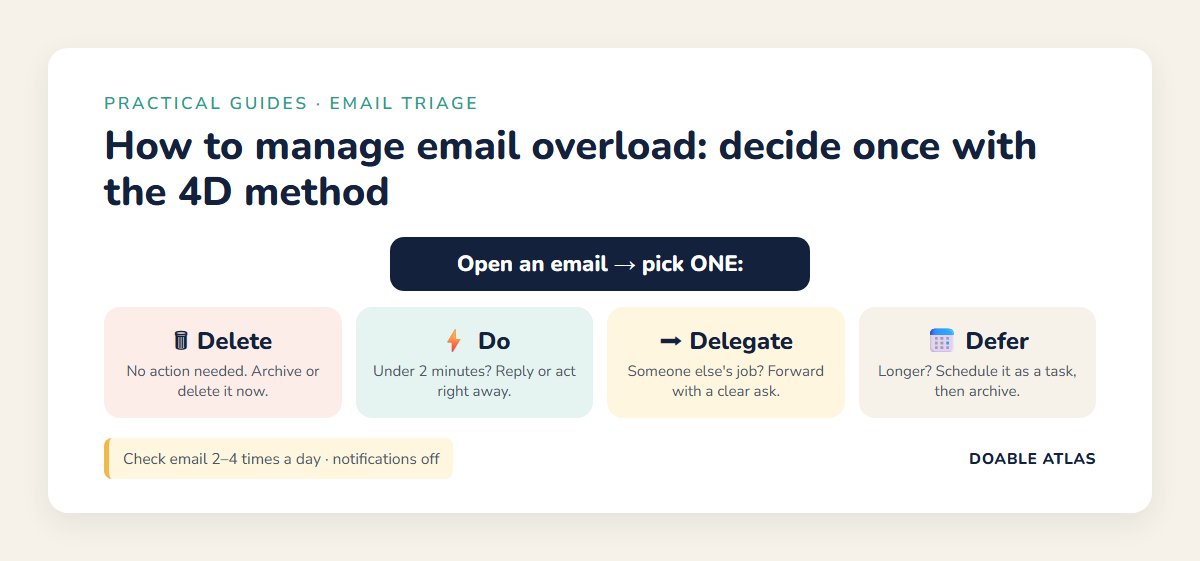
The heart of how to manage email overload is making a decision the first time you open a message instead of reading it, closing it and reading it again later. Use four options:
- Delete (or archive): no action needed. Most newsletters, notifications and FYIs belong here.
- Do: if it takes less than two minutes, reply or act now. This “two-minute rule” was popularized by productivity author David Allen in Getting Things Done.
- Delegate: if someone else should handle it, forward it with a clear request and move on.
- Defer: if it takes longer, turn it into a task with a time, then archive the email.
The key is that “defer” means scheduled, not ignored. Put the task on your to-do list or calendar so the inbox stops acting as a reminder system.
Step 3: Shrink the flow with unsubscribes
The fastest way to handle fewer emails is to receive fewer. Spend 15 minutes on an unsubscribe sweep:
- Search your inbox for the word “unsubscribe”. This surfaces most marketing mail.
- For each sender you have not opened in a month, click unsubscribe. Legitimate US senders are required by the CAN-SPAM Act to honor opt-out requests (FTC).
- Gmail and some other services show an Unsubscribe link at the top of bulk messages, which makes this faster.
- For suspicious or obvious spam, use Report spam instead of clicking links inside the message.
Repeat the sweep once a month. Many people cut their incoming mail noticeably in the first session.
Step 4: Let filters sort your mail for you
Filters (called rules in Outlook) automatically label, move or archive messages based on sender, subject or keywords. A few well-chosen filters can turn a chaotic inbox into a calm one.
Useful filters to create
| Filter | Match on | Action |
|---|---|---|
| Newsletters | Contains “unsubscribe” | Skip inbox, label “Read later” |
| Receipts | “receipt” OR “order confirmation” | Skip inbox, label “Receipts” |
| Notifications | From social or app notification addresses | Archive or label “Alerts” |
| VIPs | From your manager, key clients or family | Star or mark important |
| CC’d mail | You are not in the “To” line | Label “CC”, review once a day |
How to create a filter
- Gmail: click the search options icon in the search bar, enter your criteria, then choose Create filter and pick actions such as “Skip the Inbox” or “Apply the label” (Gmail Help).
- Outlook: open Settings, then Mail, then Rules, and add a new rule with conditions and actions.
- Apple Mail: use Settings (or Preferences), then Rules on a Mac.
Start with three filters. You can always add more once you see what still clutters your inbox.
Step 5: Use a simple folder system
Elaborate folder trees take time to maintain and slow you down. Most people only need a few:
- Inbox: only new, unprocessed mail.
- Action: optional, for emails tied to tasks you have already scheduled.
- Waiting for: messages where you are expecting a reply from someone else.
- Archive: everything else. Search is faster than folders for finding old mail.
Review “Waiting for” once a week and follow up on anything overdue. This tiny habit prevents a lot of dropped balls.
Step 6: Write less with reply templates
Many emails need the same answers over and over. Save them as templates (Gmail calls them templates, Outlook calls them My Templates or Quick Parts) and adjust as needed. Here are four to start with:
- Acknowledging: “Thanks, got it. I’ll get back to you by Thursday.”
- Declining kindly: “Thanks for thinking of me. I can’t take this on right now, but I hope it goes well.”
- Scheduling: “Happy to meet. Here are two times that work for me: [time 1] or [time 2].”
- Redirecting: “The best person for this is [name], copied here, who can help with the details.”
If saying no is hard for you, our guide on how to set boundaries politely has more ready-to-use scripts.
Step 7: Write better emails to get fewer emails
The emails you send shape the emails you get back. Clear messages reduce follow-up questions:
- Put the request in the subject line: “Decision needed by Friday: venue for June event.”
- Lead with the ask: say what you need in the first sentence.
- Use short paragraphs and bullets: easier to answer quickly.
- Offer specific options: “Tuesday at 2 or Wednesday at 10?” beats “When are you free?”
- Avoid unnecessary reply-all and CCs: every extra recipient can generate extra replies.
Digging out of a huge backlog
If you have thousands of unread emails, do not try to process them one by one. Declare a fresh start:
- Search for important senders (your manager, clients, family, bank) from the past month and handle those first.
- Select everything older than 30 days and archive it. It is still searchable if you need it.
- Process the last 30 days using the 4D method, in 30-minute sessions.
- Set up filters and unsubscribe so the backlog does not rebuild.
Archiving is not deleting. You are simply removing old mail from your daily view so you can focus on what matters now.
How to manage email overload on your phone
Phones make checking email effortless, which is exactly the problem. A few adjustments help:
- Move the mail app off your home screen into a folder.
- Turn off badges (the red unread counter) as well as notifications.
- Use your phone for quick triage, deleting and archiving, and save long replies for your computer.
- Use focus modes to silence work email in the evening and on weekends. Our guide to focusing without distractions explains why protected time matters.
Email overload myths vs facts
A sample daily email routine
Here is what a realistic day looks like once you know how to manage email overload. Adjust times to your schedule.
| Time | Email activity | Length |
|---|---|---|
| 8:00–9:00 | No email. Most important task first. | – |
| 9:00 | Session 1: triage everything with the 4D method. | 20–30 min |
| 12:30 | Session 2: quick replies and delegations. | 15 min |
| 16:00 | Session 3: final triage, check “Waiting for.” | 20 min |
| Evening | Email closed. Focus mode on. | – |
That is roughly an hour a day of focused email time instead of scattered checking all day long. Pair it with time blocking so the sessions become automatic.
Work inbox vs personal inbox
Email overload often comes from two inboxes bleeding into each other. Keep them separate:
- Use different apps or profiles for work and personal mail so one does not interrupt the other.
- Do not forward work email to a personal account, both for focus and for your employer’s security rules.
- Give your personal inbox its own filters: receipts, bills, school updates and family each get a label.
- Create a separate email address for shopping and sign-ups. It keeps promotions out of the inbox you use for real conversations.
Free tools that help with email overload
You do not need paid apps to fix email overload. Built-in features of free email services go a long way:
- Snooze: Gmail and Outlook let you hide a message until a chosen time, when it returns to the top of your inbox.
- Schedule send: write replies during your email session and schedule them for business hours.
- Tabs and focused inbox: Gmail’s category tabs and Outlook’s Focused Inbox separate promotions from personal messages.
- Templates: save common replies so you are not typing them from scratch.
- Tasks integration: turn emails into tasks in Google Tasks or Microsoft To Do, covered in our guide to the best free productivity tools.
Use these features to support the habits above, not to replace them. A snoozed email you never decide on is still an open loop.
Quick self-check: how overloaded are you?
- Do you check email more than 10 times a day?
- Do you have more than 500 unread messages?
- Do you read the same email more than once before acting on it?
- Do you check work email in bed or first thing on waking?
- Do you lose track of emails you meant to reply to?
Two or more yes answers suggest email is running your day. Start with Step 1 this week and add one more step each week after that.
When email overload is a team problem
Sometimes your inbox is overloaded because of how your whole team uses email. You cannot fix that alone, but you can suggest a few shared norms. Learning how to manage email overload as a group often helps everyone more than individual hacks.
- Agree on response times: for example, same day for client requests, 48 hours for internal questions and phone or chat for anything truly urgent.
- Move quick conversations to chat: a team messaging tool is better for short back-and-forth; email is better for decisions and records.
- Use clear subject tags: “ACTION,” “FYI” or “DECISION” at the start of a subject line tells people how to triage instantly.
- Limit reply-all: reply only to the people who need the answer.
- Respect off hours: use schedule send so late-night messages arrive in the morning.
- Summarize long threads: one person posts a short summary and next steps instead of everyone replying again.
Scripts for setting expectations
A short, friendly message helps people adjust to your new email routine:
- To colleagues: “I’m now checking email at set times to focus better. I’ll always reply within a day; for anything urgent, please message or call me.”
- Auto-reply during deep work days: “I’m focused on a project today and checking email at 12:30 and 4:00. If it’s urgent, please call.”
- To frequent senders: “Could we batch these updates into one weekly email? It would help me give each one proper attention.”
Most people respond positively, and many quietly adopt the same habits once they see how much calmer you are.
Frequently asked questions
What is the fastest way to manage email overload?
Turn off notifications, check email at set times and unsubscribe from mail you do not read. These three steps reduce interruptions and volume immediately.
What is inbox zero?
Inbox zero is an approach popularized by productivity writer Merlin Mann. The goal is not literally zero emails, but spending less mental energy on your inbox by deciding what to do with each message quickly.
How often should I check my email?
For many people, two to four times a day is enough. A field study found that checking email less frequently was linked to lower daily stress.
Should I delete or archive emails?
Archive most emails. It clears your inbox while keeping messages searchable. Delete obvious junk, spam and anything you will never need.
How do I handle emails that need longer replies?
Turn them into scheduled tasks. Add a time block to your calendar for longer replies and archive the email so it does not keep demanding attention.
How do I stop checking email on weekends?
Remove work email from your phone’s home screen, turn on a weekend focus mode that silences the mail app and set an auto-reply if people expect weekend responses. If your role truly requires availability, agree on one short check per day rather than constant monitoring.
Is it rude to take a day to reply?
No. For most non-urgent email, replying within one business day is considered prompt and professional. Setting clear expectations, and offering a faster channel for real emergencies, keeps relationships smooth while you learn how to manage email overload.
The takeaway
Learning how to manage email overload is less about heroic inbox sessions and more about a few calm habits: fewer checks, quick decisions, automatic sorting and shorter replies. Each step removes a little friction, and together they can give you back hours every week.
Start today with two moves: turn off email notifications and do a 15-minute unsubscribe sweep. Tomorrow, try checking email only three times. Notice how much more of your day feels like your own.