
Your email password is probably the most valuable key you own. It can reset your bank login, your shopping accounts and your social media. Yet many people still protect it with a pet’s name plus a birth year, reused across a dozen sites. If that sounds familiar, you are not alone, and fixing it is easier than you think.
This guide shows you how to create strong passwords that are actually easy to live with. You will learn what makes a password strong according to current US government guidance, how to build a memorable passphrase in two minutes, why reuse is the real danger and how password managers, two-step verification and passkeys take most of the burden off your memory.
Quick answer
How to create strong passwords: make them long (the US Cybersecurity and Infrastructure Security Agency recommends at least 16 characters), random and unique for every account. The easiest way is a passphrase of four or more random words, or a password manager that generates and stores passwords for you. Then turn on two-step verification, or use passkeys where available, for your most important accounts.
In this guide
What makes a password strong?
Before you learn how to create strong passwords, it helps to know what attackers actually do. Most break-ins do not involve a genius guessing your password. They involve automated tools trying huge lists of common passwords, or reusing passwords leaked from other websites.
The US Cybersecurity and Infrastructure Security Agency (CISA) sums up a strong password in three words: long, random and unique (CISA).
- Long: CISA recommends at least 16 characters. Every extra character multiplies the number of possible combinations.
- Random: not based on your name, birthday, team, pet or a common pattern like “Password1!”.
- Unique: used for one account only, so a leak on one site does not unlock the others.
The National Institute of Standards and Technology (NIST), which writes digital identity guidelines for US federal agencies, has moved away from old rules such as forcing a mix of symbols or changing passwords every 90 days. Its guidance emphasizes length, checking new passwords against lists of known compromised passwords and changing a password when there is evidence it has been exposed (NIST SP 800-63B).
Why length beats complexity
Many people still believe that a short password with symbols, like Tr0ub!e7, is stronger than a long string of ordinary words. In practice, length usually wins. A short password has relatively few possible combinations, and people tend to make complex passwords in predictable ways: a capital letter at the start, a number and an exclamation point at the end, “0” for “o.”
Attack tools know these habits. A long, random passphrase made of several unrelated words is far harder to guess, and it is much easier for a human to remember and type, especially on a phone.
How to create strong passwords: the passphrase method
A passphrase is the simplest answer to how to create strong passwords you can remember. Here is the method in four steps.
- Pick four or more random, unrelated words. Truly random is best: open a dictionary to random pages, or use a dice-based word list. Avoid famous quotes, song lyrics and phrases that belong together.
- Combine them into one string. For example, a passphrase in the style of lantern-pickle-orbit-meadow. (Do not use this example; it is published.)
- Add length rather than tricks. If a site allows it, a fifth word adds more strength than swapping letters for symbols.
- Meet site rules simply. If a site insists on a number or symbol, add one in a consistent but private way, such as a separator or a number between two words.
Our example has four words and 27 characters, comfortably above CISA’s 16-character recommendation, and it is far easier to recall than a random jumble.
Passphrase builder worksheet
Want a hands-on way to practice how to create strong passwords? Grab a pen and fill in this worksheet. Do it on paper, never in a shared document, and shred the sheet once your new passphrase is stored safely.
- Word 1, something in a random room of your home: look around and pick an object you would never associate with yourself online.
- Word 2, a random verb: open a book to any page and take the first action word you see.
- Word 3, a place you have never been: not your hometown or a favorite vacation spot.
- Word 4, a random food or color: pick something that does not connect to words 1 to 3.
- Optional word 5: add one more for extra length on your most important accounts.
- Join them with a separator you like, such as a hyphen or period.
- Count the characters. You should be well above 16. If not, add another word.
- Test your memory. Type it three times over the next day before relying on it for your password manager or email.
The key is randomness. Words you choose because they feel meaningful are easier for others to guess. Words picked by chance, from a book page or a room scan, make strong passwords that still stick in your head because the mental picture they create is so odd.
Good passphrases are a great tool, but you only need a few of them: one for your password manager, one for your main email and one for your computer or phone login. Everything else can be generated and stored by the manager.
Quick self-check: how strong are your passwords?
Answer honestly. Each “yes” is a reason to act today.
- Do you use the same password, or small variations of it, on more than one site?
- Does any password include your name, birthday, address, pet or favorite team?
- Are any of your important passwords shorter than 12 characters?
- Have you used the same email password for more than a few years without two-step verification?
- Do you store passwords in an unprotected note, a spreadsheet or a sticky note on your monitor?
If you answered yes to question 1, fix that first. Password reuse is the single biggest risk on this list.
Why reusing passwords is the real danger
Data breaches happen regularly, and leaked email and password pairs are collected and tested on other websites. This is called credential stuffing. If your streaming account password is the same as your email password, a breach at the streaming service can hand someone the key to your inbox.
You can check whether your email address has appeared in known breaches using the free service Have I Been Pwned, run by security researcher Troy Hunt. If it has, change the password for that account and anywhere else you reused it.
Use a password manager
The honest answer to how to create strong passwords for 100 accounts is: you should not try to remember them all. A password manager is an app that generates long, random passwords, stores them in an encrypted vault and fills them in for you. You only need to remember one strong master passphrase.
Good options include:
- Built-in managers: Apple Passwords (iCloud Keychain), Google Password Manager and the managers built into major browsers. They are free and convenient within their ecosystems.
- Bitwarden: a widely used open-source manager with a free plan that works across devices and browsers.
- Paid managers: services such as 1Password add family sharing and extra features for a subscription.
Whichever you choose, protect the manager itself with a long passphrase and two-step verification. For a broader look at free tools that keep you organized, see our guide to the best free productivity tools.
Turn on two-step verification
Even strong passwords can be stolen through phishing. Two-step verification (also called multifactor authentication or MFA) adds a second check, so a stolen password alone is not enough. CISA recommends turning it on for important accounts.
From strongest to weakest, common second factors are:
- Passkeys or security keys: resistant to phishing because they only work on the real website.
- Authenticator apps: apps that show a six-digit code that changes every 30 seconds.
- Push prompts: approve a sign-in on your phone. Never approve a prompt you did not trigger.
- Text message codes: better than nothing, but vulnerable to SIM-swap scams.
Start with your email, bank, phone carrier account and password manager. These are the master keys to everything else.
Passkeys: the password replacement
Passkeys are a newer sign-in method supported by Apple, Google, Microsoft and many major websites. Instead of typing a password, you confirm it is you with your fingerprint, face or device PIN. The secret never leaves your device and is tied to the real website, which makes passkeys resistant to phishing.
When a site offers a passkey, it is usually worth setting one up, while keeping a strong password or recovery method as a backup.
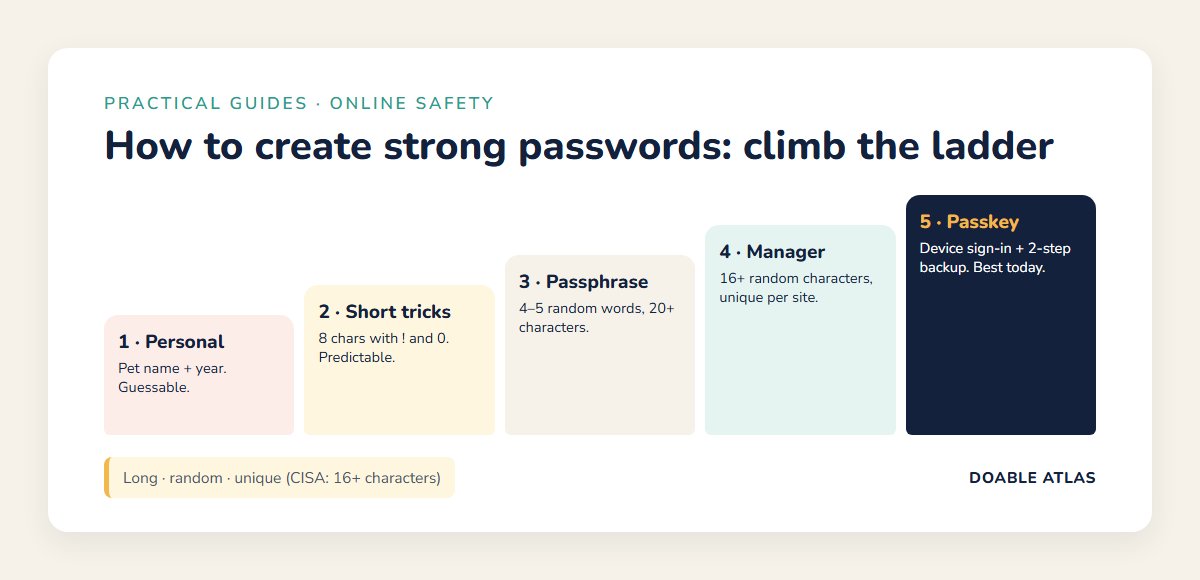
Password strength ladder
Use this ladder to see where your current passwords stand and what the next step up looks like.
| Level | Example style | Verdict |
|---|---|---|
| 1. Personal and short | pet name + birth year | Weak: guessable from social media |
| 2. Short with symbols | 8 characters with !, 0 and a capital | Better, but predictable patterns |
| 3. Long passphrase | 4–5 random words, 20+ characters | Strong and memorable |
| 4. Manager-generated | 16+ random characters, unique per site | Very strong, nothing to remember |
| 5. Passkey + backup | device sign-in, strong recovery | Best available today |
A 30-minute plan to upgrade your passwords
- Pick a password manager (5 minutes). Use your phone’s built-in manager or install one you trust.
- Create a master passphrase (5 minutes). Five random words. Write it on paper and keep it somewhere safe at home until it is memorized.
- Secure your email first (5 minutes). New unique password, two-step verification on.
- Fix your top five accounts (10 minutes). Bank, phone carrier, main shopping account, cloud storage and social media. New generated passwords, saved in the manager.
- Check for breaches (5 minutes). Look up your email on Have I Been Pwned and change any reused passwords that appear.
Then update other accounts gradually as you log into them. There is no need to do all 100 in one night.
Password myths vs facts
A lot of old advice about how to create strong passwords still circulates. Here is how the most common beliefs hold up against current guidance.
Strong passwords for special situations
Your home Wi-Fi network
Change the default Wi-Fi password and the router’s admin password printed on the sticker. Use a long passphrase for Wi-Fi so guests can type it easily, and consider a separate guest network for visitors and smart devices.
Shared family accounts
For streaming or shopping accounts the whole household uses, store the password in a shared vault in your password manager instead of texting it around. When someone moves out or a relationship changes, update it.
Children’s first accounts
Teaching kids how to create strong passwords early builds lifelong habits. Help them make a fun four-word passphrase, explain that passwords are never shared with friends and use parental account controls for younger children.
Work accounts
Never reuse a work password for personal accounts, or the reverse. Follow your employer’s rules and use the company’s approved password manager and two-step verification method.
Phone and computer lock screens
Your device passcode protects every saved password and app on it. Use at least a six-digit PIN or, better, an alphanumeric passcode, and enable automatic locking.
What to do if a password was leaked
If you get a breach notification or see an unfamiliar sign-in, act calmly and in this order:
- Change the password for the affected account to a new, unique one, ideally generated by your password manager.
- Change it anywhere you reused it. Reuse is how one leak spreads.
- Sign out other sessions. Most major services have an option to log out of all devices.
- Turn on two-step verification if it was off.
- Check recovery options. Make sure your recovery email and phone number are yours and up to date.
- Watch for phishing. Scammers often follow breaches with convincing “security alert” emails. Go to the site directly instead of clicking links.
- Review financial statements. If payment information may be involved, contact your bank or card issuer.
For identity theft concerns, the Federal Trade Commission’s IdentityTheft.gov provides official recovery steps for US residents.
Common password mistakes to avoid
- Adding “1” or “!” to an old password: attackers try those variations first.
- Using security questions with true answers: your mother’s maiden name or high school may be findable online. Treat answers like extra passwords and store them in your manager.
- Sharing passwords by text or email: use your manager’s secure sharing feature instead.
- Saving passwords on shared computers: never let a library or work computer remember your personal logins.
- Falling for “verify your account” messages: go to the website directly instead of clicking a link. Our guide to spotting weak evidence online uses the same healthy skepticism.
Frequently asked questions
How long should a strong password be?
CISA recommends at least 16 characters. A passphrase of four or five random words easily meets that, and password managers can generate longer passwords automatically.
Is it safe to use a password manager?
For most people, a reputable password manager protected by a strong master passphrase and two-step verification is far safer than reusing passwords or storing them in a notes app.
How often should I change my passwords?
Current NIST guidance does not recommend routine forced changes. Change a password when there is a reason, such as a breach, suspicious activity or if you shared it.
Are passphrases better than passwords?
A long passphrase made of random, unrelated words is usually stronger than a short complex password and much easier to remember and type.
What is the most important account to secure first?
Your main email account, because it can be used to reset passwords for most of your other accounts. Give it a unique passphrase and turn on two-step verification.
The takeaway
Learning how to create strong passwords comes down to three words: long, random and unique. Use passphrases for the few passwords you must remember, let a password manager handle the rest, turn on two-step verification for your most important accounts and switch to passkeys when sites offer them.
Start with your email today. Ten minutes now can prevent weeks of cleanup after a hacked account, and the habit will quietly protect everything else you do online.