
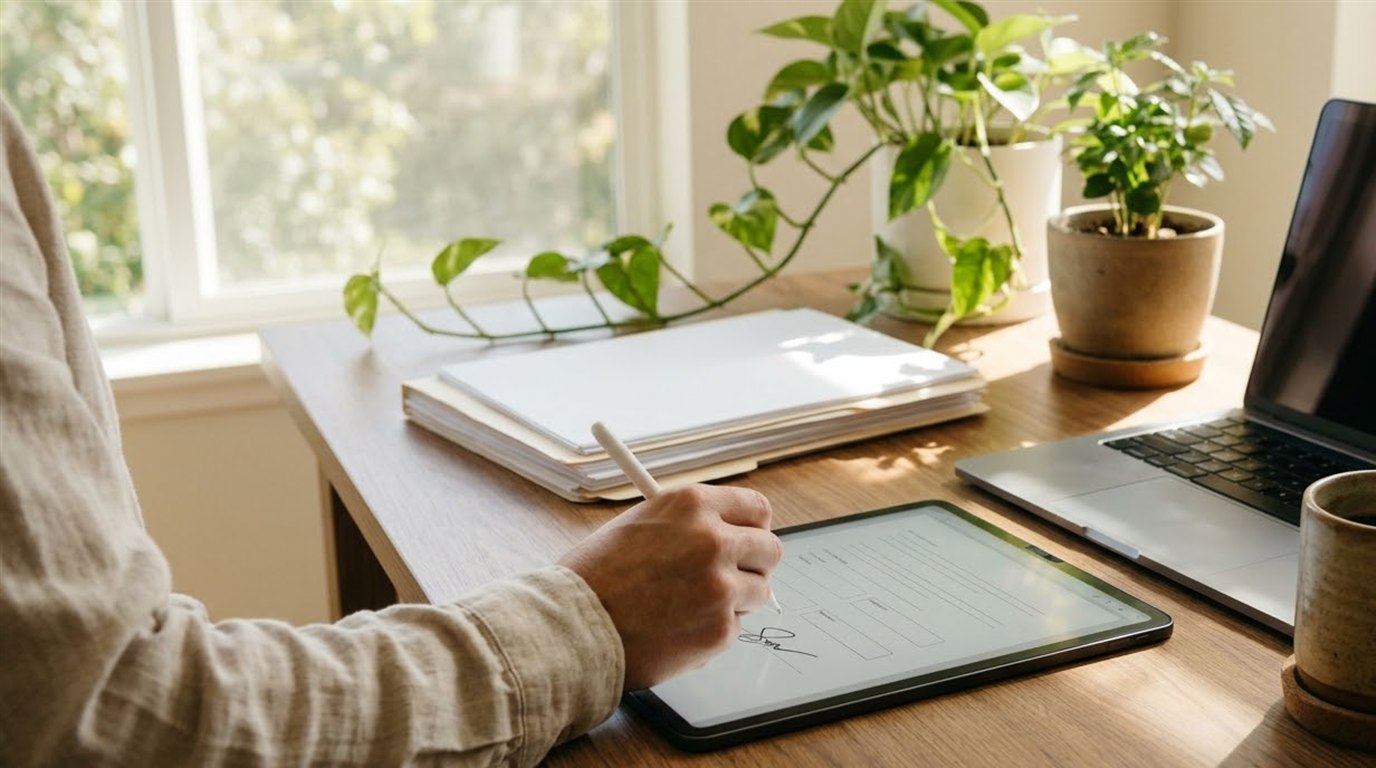
You need to sign a lease, merge three scanned pages into one file, shrink a PDF so it fits an upload limit or turn a PDF back into an editable document. A search for “PDF editor” quickly leads to free trials that end in a paywall the moment you click Download. It does not have to be that way. Many everyday PDF jobs can be done for free, often with software you already have.
This guide rounds up the best free PDF tools for reading, annotating, signing, merging, splitting, compressing, converting and editing PDFs on Windows, Mac, phones and the web. For each tool you will see what it does well, where the free version stops and which job it suits best, so you can pick the right one in a minute.
Quick answer
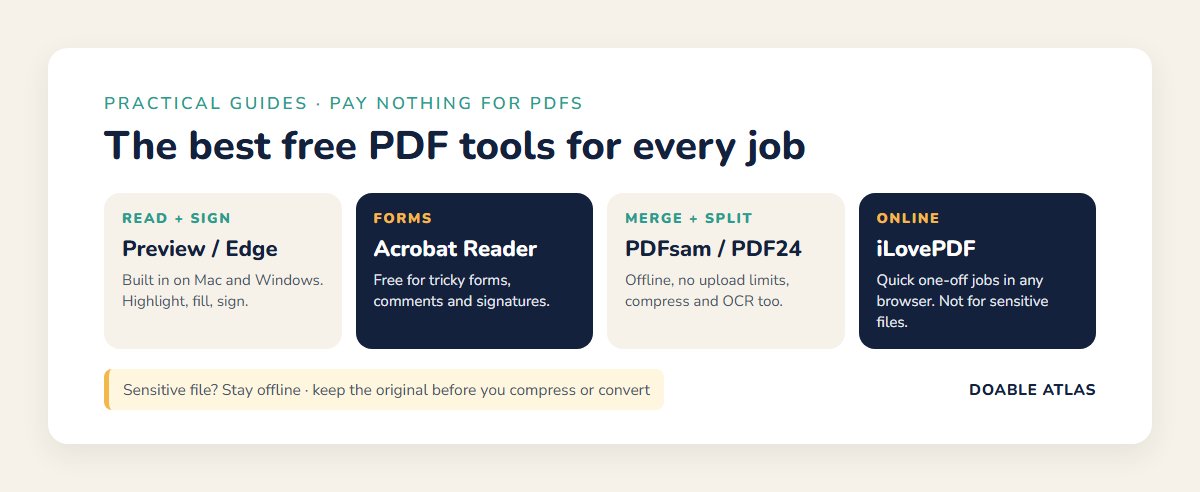
The best free PDF tools for most people are the ones already built in: Microsoft Edge on Windows and Preview on Mac for reading, highlighting and signing. Add Adobe Acrobat Reader for filling forms, PDF24 or PDFsam Basic for merging and splitting on a computer, iLovePDF or Smallpdf for quick online jobs and Google Docs or LibreOffice for converting and editing text. Avoid uploading sensitive documents to online tools when an offline option will do.
In this guide
What can you do with the best free PDF tools?
PDF tasks fall into a few groups. Knowing which group your job belongs to makes choosing a tool much easier:
- Read and annotate: open, highlight, add comments and sticky notes.
- Fill and sign: type into form fields and add a signature.
- Organize: merge files, split them, reorder, rotate or delete pages.
- Compress: shrink large files for email or upload limits.
- Convert: turn PDFs into Word, images or text, and back again.
- Edit: change the actual text or images inside a PDF.
- Recognize text (OCR): make scanned PDFs searchable and copyable.
Reading, annotating, signing and organizing are easy to do for free. Full text editing and high-quality OCR are where free tools have the most limits, so those are the jobs where you may need to combine two tools.
Best free PDF tools built into your computer
Before you download anything, check what you already have. Built-in tools are free, private (files stay on your device) and good enough for most daily jobs.
Microsoft Edge (Windows)
Edge is the default PDF reader on Windows. It can open PDFs, highlight text, draw, add text boxes, fill many forms and read documents aloud. Right-click a PDF, choose Open with and pick Microsoft Edge. Use Print → Microsoft Print to PDF to save any page or a selection of pages as a new PDF.
Preview (Mac)
Preview is one of the most capable free PDF tools on any platform. It can annotate, sign with your trackpad or camera, fill forms, reorder and delete pages, merge files by dragging thumbnails between documents and reduce file size with the Quartz filter in Export (Preview User Guide).
Chrome and other browsers
Chrome, Firefox and Safari open PDFs directly. Firefox can also fill forms, add text, draw and add signatures in its built-in viewer. Every browser can “print” a page to PDF, which is a handy way to save receipts and articles.
Best free PDF tools to install
When built-in tools are not enough, these free desktop apps cover the gaps without sending your files to the cloud.
Adobe Acrobat Reader
The free reader from the company that created the PDF format. It is reliable for filling complex forms, adding comments and signing documents. Editing text, converting and combining files require a paid Acrobat plan, and the app frequently promotes those features. Best for: forms from government agencies, banks and schools that other readers display incorrectly (Adobe).
PDF24 Creator (Windows)
A free Windows toolbox that merges, splits, compresses, converts, rotates and adds OCR, all offline. It is free for personal and business use, supported by its online version. Best for: Windows users who want an all-in-one offline toolkit (PDF24).
PDFsam Basic
Free, open-source software for Windows, Mac and Linux that does one thing very well: organizing pages. Merge, split, rotate, extract and mix pages from several files. It does not edit text. Best for: combining or splitting large PDFs without an upload limit (PDFsam).
LibreOffice Draw
Part of the free LibreOffice suite, Draw can open PDFs and let you change text and images directly. Layouts sometimes shift, so it works best on simple documents. Best for: fixing a typo or changing a date in a basic PDF.
Sumatra PDF (Windows)
A tiny, fast, open-source reader with no extras. It opens big PDFs instantly and is ideal for older or slower computers. Best for: reading only.
Best free PDF tools online
Online PDF tools work in any browser, on any device, with nothing to install. They are perfect for quick, one-off jobs. The trade-off is that free plans usually limit how many files or tasks you can do per day, and your file is uploaded to someone else’s server.
| Tool | Strengths | Free version limits |
|---|---|---|
| iLovePDF | Merge, split, compress, convert, sign, page numbers | File size and task limits on some tools |
| Smallpdf | Clean interface, compress, convert, e-sign | Limited number of free tasks per day |
| PDF24 Tools | Huge free toolset, no account needed | Generous; supported by ads |
| Adobe Acrobat online | Compress, convert, merge with good accuracy | Some tools need a free account; daily limits |
Features and limits on free plans change from time to time, so check the current terms on each site before relying on one for regular work.
Best free PDF tools for phones
Your phone can handle more PDF work than you might expect:
- iPhone and iPad: the Files app opens PDFs, lets you add markup and signatures, rotate pages and scan new documents to PDF. Books can also store PDFs.
- Android: Google Drive opens and scans PDFs, and the free Adobe Acrobat Reader app lets you fill forms, comment and sign.
- Both: Microsoft’s OneDrive app can scan and view PDFs, and many online tools work in a mobile browser.
If you mainly need to turn paper into PDFs, our guide on how to scan documents with your phone walks through the free built-in scanners step by step.
Which free PDF tool should you use? Match the tool to the job
Here is a quick way to choose among the best free PDF tools based on what you need to do right now.
| Job | Offline pick | Online pick |
|---|---|---|
| Read and highlight | Edge (Windows), Preview (Mac) | Any browser |
| Fill and sign a form | Adobe Acrobat Reader, Preview | iLovePDF, Smallpdf |
| Merge or split | PDFsam Basic, PDF24, Preview | iLovePDF, PDF24 Tools |
| Compress | PDF24, Preview (Reduce File Size) | Smallpdf, Adobe online |
| PDF to Word | Microsoft Word (opens PDFs), LibreOffice | Google Docs, iLovePDF |
| Edit text | LibreOffice Draw | Convert to Word, edit, save as PDF |
| Make a scan searchable | PDF24 (OCR) | Google Docs |
How to do common jobs with free PDF tools
Merge several PDFs into one
- On a Mac, open the first PDF in Preview, show thumbnails and drag the other files into the sidebar. Save.
- On Windows, open PDFsam Basic or PDF24, choose Merge, add files, drag them into order and save.
- Online, upload files to iLovePDF’s Merge tool, reorder and download.
Compress a large PDF
- Try an offline option first: PDF24’s compress tool on Windows or File → Export → Quartz Filter → Reduce File Size in Preview.
- If quality drops too much, use an online compressor with a “recommended” or medium setting.
- Scanned documents shrink most if you rescan them in black and white.
Convert a PDF to an editable document
- Upload the PDF to Google Drive, right-click it and choose Open with → Google Docs. Google converts it to editable text, including text from many scans (Google Drive Help).
- Or open the PDF directly in Microsoft Word, which converts it to an editable document.
- Check formatting carefully; complex layouts and tables may shift.
Sign a PDF without printing
- Mac: open in Preview, click the markup icon, then the signature button.
- Windows: open in Adobe Acrobat Reader and choose Fill & Sign.
- iPhone: open in Files, tap the markup icon and add a signature.
- Confirm the recipient accepts electronic signatures; some processes still require a handwritten one.
Are free online PDF tools safe?
Reputable online PDF services generally use encrypted connections and state that they delete uploaded files after a short period. Still, when you upload a document, you are trusting a third party with it. Use these simple rules:
- Keep sensitive files offline. Tax returns, medical records, IDs and contracts are better handled with built-in or installed tools.
- Read the privacy policy of any online tool you use regularly, especially how long files are kept.
- Download only from official sites. Fake “free PDF converter” downloads and browser extensions are a common way to spread malware and unwanted ads.
- Watch for scam emails with PDF attachments. Do not open unexpected PDFs, and never enter passwords on a page a PDF links you to.
- Be careful with “unlock” or password-removal tools. Only use them on files you own or have permission to change.
For more on protecting your accounts and devices, see our guide on how to create strong passwords.
Free vs paid PDF tools: when is it worth paying?
The best free PDF tools handle the vast majority of personal needs. Paying may make sense when:
- You edit PDF text and layouts every week and need accurate results.
- You need high-volume OCR or batch processing for work.
- You send many documents for legally tracked e-signatures.
- Your employer requires a specific tool for compliance.
If you only fill a few forms a month, free tools are enough. Before buying, check whether your school or employer already provides a license.
How we chose the best free PDF tools
Plenty of sites call themselves free and then lock the Download button. To make this list, each tool had to pass a few simple tests:
- Truly free for the core job. You can finish the task and save the result without paying, even if a paid plan exists.
- From a well-known developer. Established companies or long-running open-source projects with official download pages.
- No watermark on basic tasks. A signed or merged file should look clean.
- Easy for beginners. You should be able to complete common jobs without a tutorial.
- Clear about privacy. Offline tools score highest because files never leave your device.
Best free PDF tools for students, families and small businesses
Students
Students mostly read, highlight and submit assignments. Edge or Preview handles reading and notes, Google Docs converts PDFs into editable text for quoting and the browser’s Print to PDF turns any document into a file that school portals accept. If a portal has a strict size limit, compress the file with PDF24 or Preview before uploading.
Families
Household paperwork is all about forms, signatures and records. Adobe Acrobat Reader fills school and government forms reliably, your phone scans permission slips and receipts and PDFsam or Preview combines several pages into one tidy file for each record. Store everything in a shared, backed-up folder so both partners can find it.
Freelancers and small businesses
Invoices, quotes and contracts are where free PDF tools save real money. Create invoices in a word processor or spreadsheet and export them as PDFs, sign contracts with Acrobat Reader or Preview and use PDF24 to merge a proposal with its attachments. When you need tracked, legally binding e-signatures for many clients, that is the point where a paid service starts to pay for itself.
Troubleshooting common PDF problems
| Problem | Likely cause | Free fix |
|---|---|---|
| Form fields will not let you type | The reader does not support that form type | Open it in Adobe Acrobat Reader |
| Cannot search or copy text | The PDF is a scanned image | Run OCR with PDF24 or open with Google Docs |
| File too big to email | High-resolution images or color scans | Compress it, or share a cloud link instead |
| Pages are sideways | Scanned in the wrong orientation | Rotate in Preview, PDFsam or PDF24 and save |
| Layout breaks after converting to Word | Complex columns, tables or fonts | Edit a copy in LibreOffice Draw, or retype short sections |
Myths vs facts about free PDF tools
Tips for working with PDFs faster
- Set your favorite reader as the default so PDFs always open where you want them.
- Name files clearly with a date-first pattern, like
2026-11-16_lease_signed.pdf. Our guide on how to organize digital files explains a full system. - Keep the original before you compress, convert or edit, in case something goes wrong.
- Use keyboard shortcuts: Ctrl+F or Cmd+F to search text, Ctrl+P or Cmd+P to save pages as a new PDF.
- Save a signature once in Preview or Acrobat Reader so signing takes seconds next time.
- Clean up after yourself. Delete temporary copies from Downloads; our digital declutter checklist shows how to keep it tidy.
Our picks: the best free PDF tools at a glance
Preview on Mac; Microsoft Edge on Windows.
Adobe Acrobat Reader (free).
PDF24 Creator (Windows); PDFsam Basic for merging and splitting.
iLovePDF and PDF24 Tools for quick, one-off jobs.
For more free software across notes, tasks, storage and focus, see our roundup of the best free productivity tools.
Frequently asked questions
What is the best free PDF editor?
For simple text changes, LibreOffice Draw is a strong free option. For bigger edits, convert the PDF to an editable document with Google Docs or Microsoft Word, make your changes and save it as a PDF again.
Can I combine PDFs for free?
Yes. Preview on Mac, PDFsam Basic and PDF24 on Windows, and online tools such as iLovePDF all merge PDFs for free.
How do I reduce a PDF’s file size for free?
Use Preview’s Reduce File Size filter on Mac, PDF24’s compressor on Windows or an online compressor such as Smallpdf or Adobe’s free online tool.
Is Adobe Acrobat Reader really free?
Yes. Reading, commenting, filling forms and signing are free. Editing, converting and combining PDFs require a paid plan.
Are online PDF converters safe for personal documents?
Reputable ones use encryption and delete files after a set time, but it is safest to handle sensitive documents offline with built-in or installed tools.
How can I make a scanned PDF searchable for free?
Open it with Google Docs from Google Drive to extract the text, or use the OCR tool in PDF24.
The takeaway
You rarely need to pay to work with PDFs. Start with the best free PDF tools you already have, Preview on a Mac or Edge on Windows, then add Adobe Acrobat Reader for tricky forms and PDF24 or PDFsam for merging, splitting and compressing. Use online tools for quick jobs, and keep sensitive documents offline.
Pick one PDF task you have been putting off, such as signing that form or merging those scanned pages, and try it now with a free tool from this list. Chances are it will take less than five minutes.