

Maybe a coworker mentioned they “had AI write it.” Maybe your kid used a chatbot to study for a test, or you saw an ad promising an app that does your whole job. Then you open one of these tools yourself, stare at the empty box and wonder what you are actually supposed to type. You are not alone, and you do not need to pay for anything to get real value.
This guide to the best free AI tools skips the hype. It explains in plain language what today’s AI assistants are good at, where they make mistakes, which free tools are worth trying for writing, research, images, meetings and everyday chores, and a simple 7-day plan to make one of them genuinely useful in your life.
Quick answer
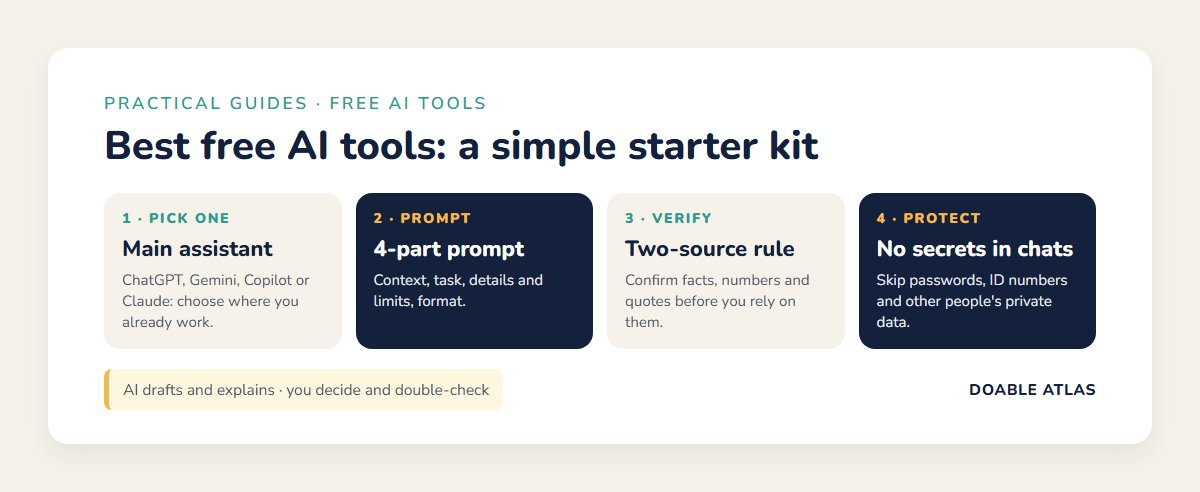
For most people, the best free AI tools are one general chat assistant (ChatGPT, Google Gemini, Microsoft Copilot or Claude) plus one or two specialist tools for a job you do often, such as Perplexity for research with sources, Canva for quick designs or Otter for meeting notes. Free plans have usage limits, so pick one main assistant, learn to give it clear instructions and always double-check facts, numbers and anything important before you rely on them.
In this guide
What free AI tools can and cannot do
Most of the best free AI tools you hear about are built on large language models. In simple terms, they have learned patterns from huge amounts of text, so they are very good at producing fluent writing, summarizing, rewording, brainstorming and explaining. Newer versions can also look at photos, read PDFs, listen to speech and search the web.
That fluency is also the catch. An AI assistant can sound completely confident while being wrong. It can invent a statistic, a quote or a book that does not exist. The US National Institute of Standards and Technology calls this “confabulation” and lists it as a core risk of generative AI (NIST AI Risk Management Framework). The practical rule is simple: use AI to draft, organize and explain, and use your own judgment, or a trusted source, to confirm.
Great jobs for AI
- Turning messy notes into a clean email, list or plan.
- Explaining a confusing letter, contract clause or medical term in plain English (then checking with a professional).
- Brainstorming ideas: gift ideas, meal plans, project names, workout variations.
- Summarizing long articles, PDFs or meeting transcripts.
- Rewriting text to be shorter, friendlier or more formal.
Jobs to be careful with
- Legal, medical, tax or financial decisions. Use AI to prepare questions, not to replace an expert.
- Exact facts, dates, prices and quotes. Verify them.
- Anything involving private data about you, your family, clients or employer.
The best free AI tools at a glance
Free plans change often, so the table focuses on what each tool is best at rather than exact limits. Check each tool’s own pricing page for the current free allowance.
| Tool | Best for | Good to know |
|---|---|---|
| ChatGPT (OpenAI) | All-round writing, brainstorming, explaining | Free plan with daily limits on the most advanced features |
| Google Gemini | People who live in Gmail, Docs and Android | Uses your Google account; can work with Google apps |
| Microsoft Copilot | Windows users, web answers with links | Built into Windows and the Edge browser |
| Claude (Anthropic) | Long documents, careful writing and editing | Free plan with message limits |
| Perplexity | Research questions with cited sources | Shows links so you can verify answers |
| Canva (Magic tools) | Flyers, social posts, quick image edits | Some AI features are limited on the free plan |
| Otter | Recording and transcribing meetings or lectures | Free plan has monthly minute limits; always ask before recording people |
| Google NotebookLM | Studying your own documents and notes | Answers are grounded in the sources you upload |
Best free AI tools for writing and everyday tasks
If you only try one thing, try a general chat assistant. ChatGPT, Gemini, Copilot and Claude can all handle the everyday basics: drafting emails, rewording a text message, making a packing list or explaining a bill. The differences are smaller than the marketing suggests, so choose based on where you already work. If your life runs on Gmail and Google Docs, start with Gemini. If you use Windows and Edge every day, Copilot is already there. If you want a tool that is especially comfortable with long documents and careful editing, Claude is a strong choice. ChatGPT is the most widely used and has the largest set of tutorials online.
According to the Pew Research Center, about 34% of US adults have used ChatGPT, roughly double the share in 2023, ranging from 58% of adults under 30 to 10% of those 65 and older (Pew Research Center). In other words, if you feel behind, you are in good company, and the learning curve is short.
Prompts that work on any assistant
- “Rewrite this email so it is polite but firm, under 120 words: [paste text]”
- “Explain this letter like I am a busy adult with no legal background. List anything I need to do and by when: [paste text]”
- “Make a 5-day dinner plan for two adults, under 30 minutes each, no seafood, with one shopping list.”
- “Turn these notes into a clear to-do list grouped by today, this week and later: [paste notes]”
Best free AI tools for research and studying
When the answer has to be right, you want a tool that shows its sources. Perplexity and Microsoft Copilot both include links with their answers, which makes it much easier to click through and confirm. Google’s NotebookLM takes a different approach: you upload your own PDFs, notes or web links, and it answers only from those sources, which is ideal for studying a textbook chapter, a policy document or a long report.
A good habit is the “two-source rule”: if an AI answer matters, find two reliable sources that agree before you act on it. For health topics, that might be your doctor and a government site such as MedlinePlus. For money topics, it might be the IRS or the Consumer Financial Protection Bureau.
Best free AI tools for images and design
Canva’s free plan includes several AI features, such as generating images from a description and removing backgrounds, inside an editor that already has thousands of templates. Microsoft Designer and the image features in ChatGPT and Gemini can also create pictures from text. Use these for birthday invitations, social posts, presentation backgrounds or mockups.
Two cautions. First, AI images can contain odd details, such as extra fingers or garbled text, so zoom in before you print. Second, be honest when an image is AI-generated, especially if it shows people or events. The Federal Trade Commission warns that scammers use AI to create fake images, voices and videos (FTC consumer alert), which is a good reason to label your own creations clearly.
Best free AI tools for meetings and productivity
Transcription tools such as Otter can record a meeting or lecture, turn speech into text and produce a short summary with action items. Many video-call apps now include similar features. They save a lot of typing, but always tell people when you are recording, follow your workplace rules and check the summary against what was actually said.
AI also fits naturally into the tools you may already use. Our guides to the best free productivity tools, best free note-taking apps and best free task management apps show where AI features are built in and when a simple, non-AI app is still the better choice.
Best free AI tools match-up: pick by what you need
| If you want to… | Start with |
|---|---|
| Write and reply to email faster | Gemini (Gmail users) or Copilot (Outlook users) |
| Understand a long PDF or contract | Claude or NotebookLM |
| Research a question with sources | Perplexity or Copilot |
| Make a flyer or social post | Canva |
| Capture meeting notes | Otter or your video app’s built-in notes |
| Learn the basics of AI with lots of tutorials | ChatGPT |
How to get better answers: the 4-part prompt
The single biggest upgrade is not a different app. It is a better instruction. Vague questions get vague answers. Try including four parts:
- Role or context: “I am a first-time manager of a team of five.”
- Task: “Write a short message announcing a new weekly check-in.”
- Details and limits: “Friendly tone, under 100 words, mention it is 15 minutes on Mondays at 10 a.m.”
- Format: “Give me two versions, one formal and one casual.”
Then treat the first answer as a draft. Ask follow-ups such as “make it warmer,” “remove the jargon” or “what am I missing?” The conversation is where most of the value comes from.
Privacy and safety rules for the best free AI tools
Free tools are paid for in other ways, often by using conversations to improve the service. Many let you turn that off in settings, so look for options such as chat history or “improve the model” and choose what you are comfortable with.
- Do not paste secrets. Skip passwords, full card or account numbers, Social Security numbers and medical records.
- Protect other people’s information. Remove names and details from work documents unless your employer has approved the tool.
- Use a strong, unique password and two-step verification on your AI accounts, just like email. Our guides on how to create strong passwords and password managers for beginners make this easy.
- Watch for AI-powered scams. A call or video that sounds like a relative asking for money urgently could be cloned. Hang up and call them back on a number you know.
A 7-day plan to get started with the best free AI tools
| Day | Try this |
|---|---|
| 1 | Pick one assistant, sign in, and check its privacy settings. |
| 2 | Rewrite one real email or text message you have been putting off. |
| 3 | Ask it to explain something confusing: a bill, a policy or a news topic. |
| 4 | Plan meals or a weekly schedule, then adjust it with follow-up requests. |
| 5 | Fact-check a claim it makes using two reliable sources. |
| 6 | Try one specialist tool for a job you do often (research, design or meetings). |
| 7 | Save your three best prompts in a note so you can reuse them. |
Quick quiz: are you using AI wisely?
1. An AI assistant gives you a statistic for a report. What should you do?
Find the original source before using it. AI tools can produce convincing numbers that are out of date or invented.
2. Is it safe to paste a client’s contract into a free chatbot?
Only if your employer allows that tool and you remove personal details. When in doubt, summarize the issue in your own words instead.
3. Your “grandson” calls asking for bail money and sounds exactly like him. Next step?
Hang up and call him or a family member directly. Voice cloning is a known scam tactic.
Best free AI tools by life situation
The right tool depends less on which app is “smartest” and more on what your days actually look like. Here is how different people tend to get the most out of free AI without adding another subscription.
Students
Use AI as a tutor, not a ghostwriter. Ask a chat assistant to explain a concept three different ways, quiz you on a chapter or check whether your outline makes sense. NotebookLM is especially useful because you can upload your own class notes and readings and ask questions about them. Always follow your school’s rules: many teachers allow AI for brainstorming and studying but not for writing graded work, and some require you to say when you used it. If a tool suggests a source, open it and read it yourself before citing it.
Busy parents
The biggest wins are usually planning and paperwork. A free assistant can turn “we have chicken, rice and broccoli” into three dinner ideas, build a weekly chore chart, draft a polite note to a teacher or summarize a long school newsletter into the three dates you actually need. Pair it with a shared calendar from our best free calendar apps guide so the plan lands somewhere the whole family can see. Keep children’s personal details, photos and school records out of chatbots.
Small business owners and freelancers
AI is excellent at the writing tasks that pile up: first drafts of product descriptions, replies to common customer questions, social posts, simple policies and meeting summaries. Canva’s AI tools help with quick graphics, and a chat assistant can turn a rough price list into a clean one-page offer. Be careful with anything that makes a legal or financial promise, and review every customer-facing message before sending it. The FTC expects businesses to be truthful in advertising whether a person or a tool wrote the words.
Older adults and first-time users
Voice features make AI approachable: you can simply ask a question out loud on a phone and hear the answer. Good starter uses include explaining a confusing letter, writing a birthday message, planning a trip itinerary or getting step-by-step help with a phone setting. Because scammers increasingly use AI to fake voices and messages, it helps to agree on a family “safe word” and to call people back on a number you already know before sending money or personal information.
Common mistakes beginners make with AI
- Asking one-line questions. Add context and limits, and you will get a far better first answer.
- Accepting the first draft. Ask for changes. The second or third version is usually the good one.
- Trusting confident tone. Confidence is not accuracy. Check facts that matter.
- Signing up for everything. Five half-used apps are worse than one you know well.
- Forgetting privacy settings. Spend two minutes in settings on day one.
Free vs paid: when upgrading makes sense
Paid plans usually offer more messages, faster responses, newer models and larger file uploads. They can be worth it if you use AI every day for work, especially for long documents. For most households, though, the best free AI tools are more than enough. A good test is to use a free plan for a month and track how often you hit the limits. If it is rarely, stay free. If it is daily and the tool saves you real time, upgrading one tool, not five, is the sensible move.
Keep your digital life simple
AI works best on top of good digital habits. If your files, inbox and phone are a mess, start there: our guides on organizing digital files, managing email overload and the digital declutter checklist make AI tools far more useful, because it is much easier to find, paste and summarize what you need.
Glossary
- Prompt: the instruction or question you type into an AI tool.
- Large language model (LLM): the type of AI behind chat assistants, trained on large amounts of text.
- Hallucination or confabulation: when AI states something false as if it were true.
- Grounding: making an AI answer only from specific sources you provide.
- Deepfake: AI-generated audio, image or video made to look real.
The bottom line
You do not need ten apps or a subscription to benefit from AI. Choose one of the best free AI tools as your main assistant, add one specialist tool for a task you repeat often, learn the 4-part prompt and keep the two-source rule for anything important. Start today with the email you have been avoiding. Five minutes from now, it could be sent.