
You have probably clicked “Forgot password?” more times this year than you would like to admit. Or you use the same two or three passwords everywhere because remembering 100 different ones is impossible. Both habits are completely understandable, and both are risky: when one website is breached, criminals try the same email and password on banks, shops and email accounts.
A password manager solves this. It remembers a strong, unique password for every account, fills it in for you and keeps everything locked behind one password you actually remember. This password manager for beginners guide explains how they work in plain language, which free options are worth using, how to set one up step by step and a simple one-week plan to move your most important accounts without stress.
Quick answer
A password manager is an app that stores all your passwords in an encrypted vault and fills them in automatically. Beginners can start free with the one built into their devices (Apple Passwords or Google Password Manager) or with Bitwarden or Proton Pass if they use a mix of Apple, Android and Windows. Protect it with a long master passphrase and two-step verification, then change the passwords on your email and bank accounts first.
In this guide
What is a password manager?
If you are looking for a password manager for beginners, start with the basic idea: a password manager is like a locked digital notebook for your logins. Inside it you store the username, password and website for each account. When you visit a login page, the app recognizes the site and offers to fill in the details. When you create a new account, it can invent a long random password and save it for you.
Everything in the vault is encrypted, which means it is scrambled into unreadable data. Only your master password, the one password you remember, can unlock it. With good password managers, the company that makes the app cannot see your passwords either.
Security agencies recommend them. The US Cybersecurity and Infrastructure Security Agency (CISA) lists using a password manager as one of the basic steps to stay safe online (CISA), and the US government’s digital identity guidelines encourage websites to allow password managers and pasting so people can use long, unique passwords (NIST SP 800-63B).
Why a password manager for beginners is worth it
- Reused passwords are the real danger. Most account takeovers do not involve clever hacking. Criminals take passwords leaked from one site and try them everywhere else, a technique called credential stuffing.
- Strong passwords are hard to remember. A password manager lets every account have a long, random password without any memory work.
- It helps spot fake websites. A password manager fills your bank password only on your bank’s real web address. If it does not offer to fill, that is a warning sign you might be on a lookalike phishing page.
- It saves time. No more resets, no more sticky notes, no more guessing which variation you used.
- It warns you. Many password managers flag weak, reused or leaked passwords so you know what to fix first.
You can check whether your email address has appeared in known data breaches on the free site Have I Been Pwned. Most people find at least one.
How does a password manager work?
- You create one master password. This unlocks your vault. Make it long and memorable.
- Your vault is encrypted on your device. Passwords are scrambled before they are synced to the cloud.
- The app syncs across devices. Your phone, laptop and tablet all get the same encrypted vault.
- It fills logins for you. Through a browser extension on computers and the autofill feature on phones.
- You unlock with your face or fingerprint. After the first sign-in, most apps let you use Face ID, a fingerprint or your device PIN for daily unlocking.
Because the encryption happens on your device, even if the company’s servers were breached, attackers would get scrambled data that is extremely hard to crack without your master password. That is why a strong master password matters so much.
Best free password manager for beginners: 5 options
| Password manager | Works on | Best for | Good to know |
|---|---|---|---|
| Apple Passwords | iPhone, iPad, Mac; iCloud for Windows | All-Apple households | Built in and free; limited on Android |
| Google Password Manager | Chrome, Android, iPhone (via Chrome) | Android and Chrome users | Built in and free; tied to your Google account |
| Bitwarden | All browsers, Windows, Mac, Linux, Android, iPhone | Mixed devices on a budget | Free plan with unlimited passwords and devices; open source |
| Proton Pass | Browsers, Windows, Mac, Linux, Android, iPhone | Privacy-minded users | Free plan includes email aliases to hide your address |
| KeePassXC | Windows, Mac, Linux | People who want everything offline | No cloud sync built in; more technical |
Popular paid options such as 1Password are also well regarded and offer free trials. Plans and features change, so check each provider’s current terms before you sign up.
Apple Passwords
Newer versions of iOS, iPadOS and macOS include a dedicated Passwords app that stores logins, passkeys, Wi-Fi passwords and verification codes, synced through iCloud Keychain (Apple Support). You can share selected passwords with family members in a shared group. It is the easiest choice if everyone uses Apple devices. On a Windows PC, the iCloud for Windows app adds password filling in Chrome and Edge.
Google Password Manager
Built into Chrome and Android, Google Password Manager saves passwords as you sign in, suggests strong new ones and runs a Password Checkup that flags weak, reused and compromised passwords (Google Account Help). It works on iPhone through the Chrome app. It is a good fit if you already live in Chrome.
Bitwarden
Bitwarden is a strong free choice for people with a mix of devices, such as an iPhone and a Windows laptop. The free plan includes unlimited passwords on unlimited devices, and its code is open source so independent experts can inspect it (Bitwarden). The design is plain but practical.
Proton Pass
From the makers of Proton Mail, Proton Pass offers a free plan with unlimited logins and devices, encrypted notes and a limited number of email aliases, which let you sign up for websites without revealing your real email address (Proton).
Built-in vs dedicated password manager: which should you choose?
| Your situation | Good choice |
|---|---|
| iPhone + Mac, Safari user | Apple Passwords |
| Android phone + Chrome on any computer | Google Password Manager |
| iPhone + Windows laptop, or several browsers | Bitwarden or Proton Pass |
| Family on different phones sharing logins | Bitwarden (free sharing with one other person) or a paid family plan |
| Want nothing stored in the cloud | KeePassXC |
The best free password manager for beginners is the one you will actually use. A built-in option used every day beats a fancy app you abandon after a week.
How to set up a password manager for beginners, step by step
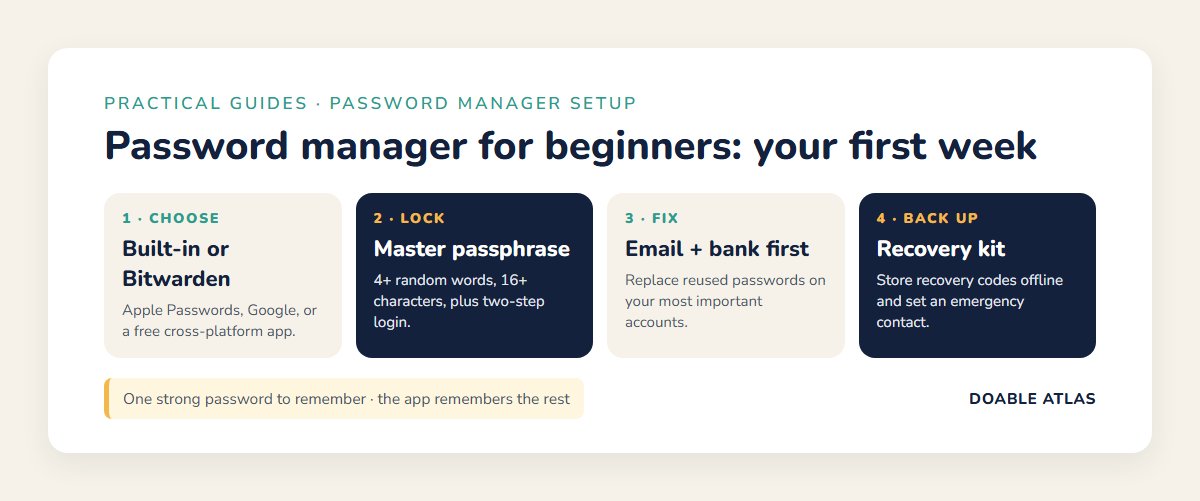
- Choose your app using the table above and install it on your phone and computer. Download only from the official website or your device’s app store.
- Create your master password. Use a passphrase of four or more random words, such as harbor-pencil-mango-thunder (do not use this example). CISA recommends passwords of at least 16 characters.
- Write it down once, on paper. Keep it somewhere safe at home, not in your wallet or phone notes, until you have it memorized.
- Turn on two-step verification for the password manager account, using an authenticator app or a security key if available.
- Save your recovery kit. Many apps provide recovery codes or an emergency kit. Print it or store it offline. Without it, a forgotten master password can mean losing the vault.
- Install the browser extension on your computer and turn on autofill on your phone (in Settings, look for Passwords or Autofill).
- Import existing passwords. Most apps can import passwords already saved in Chrome, Edge, Safari or Firefox. Afterward, turn off the browser’s own password saving if you switched to a different manager, so you only have one place to look.
- Run the security check. Look for the report of weak, reused or exposed passwords. This is your to-do list.
Password manager for beginners: your first week
Do not try to change 150 passwords in one evening. Fix the accounts that matter most first, then let the rest happen naturally as you log in.
| Day | Task | Time |
|---|---|---|
| Day 1 | Install, create master passphrase, turn on two-step verification, save recovery kit | 20 min |
| Day 2 | Change your main email password to a generated one; review its recovery phone and email | 10 min |
| Day 3 | Bank, credit card and payment apps | 15 min |
| Day 4 | Phone account (Apple ID or Google account) and mobile carrier | 10 min |
| Day 5 | Shopping sites with saved cards, such as Amazon | 15 min |
| Day 6 | Social media and work accounts | 15 min |
| Day 7 | Fix anything flagged as reused or exposed; delete accounts you no longer use | 20 min |
Your email account comes first because it is the key to everything else: whoever controls your email can reset almost any other password. After week one, update any remaining account the next time you log in to it.
Which accounts to protect first: the priority ladder
Resets every other account.
Bank, cards, PayPal, investing.
Apple ID, Google, Microsoft.
Saved cards, medical portals.
Update as you log in.
How to create a master password you will not forget
Your master password is the one password you still need to remember, so it must be both strong and memorable. A random passphrase does both.
- Use four to six random words. Pick them by opening a book to random pages or use the passphrase generator in your password manager.
- Avoid personal details. No names, birthdays, pets, teams or song lyrics.
- Do not reuse it anywhere. Your master password should never be used for any other account.
- Practice it. Type it every day for the first week and it will stick.
This is the one step in any password manager for beginners setup that deserves extra care. For more examples and a strength ladder, read our guide on how to create strong passwords.
Passkeys: the next step after passwords
More websites now offer passkeys, a newer way to sign in that replaces passwords with your phone’s face or fingerprint unlock. A passkey cannot be guessed, reused or typed into a fake website, which makes it highly resistant to phishing. Apple, Google and Microsoft all support passkeys (FIDO Alliance).
The good news for beginners: modern password managers, including Apple Passwords, Google Password Manager, Bitwarden and Proton Pass, can store passkeys too. When a site offers “Create a passkey,” you can accept it and let your password manager keep it safe.
What if my password manager gets hacked?
It is a fair question. Password manager companies are attractive targets, and at least one major provider has had encrypted vault data stolen in the past. In well-designed password managers, however, the vault is encrypted with your master password before it ever leaves your device, so stolen data is scrambled. A long, unique master passphrase makes it impractical to crack.
To stay safe:
- Use a strong master passphrase and two-step verification.
- Keep the app and your devices updated.
- Choose a reputable provider with a clear security record and independent audits.
- Turn on two-step verification on your most important accounts too, so a password alone is never enough.
Overall, a password manager is far safer than reusing passwords, writing them on sticky notes or storing them in a phone note.
Password manager for beginners: common mistakes to avoid
Password manager for beginners: tips for families and older relatives
- Share, do not text. Use the password manager’s sharing feature for the streaming or utility account instead of sending passwords by message.
- Set up emergency access. Several apps let a trusted person request access to your vault if something happens to you.
- Keep it simple for parents. The built-in option on their phone is often the easiest. Help them set the master password, then write it down and store it somewhere safe at home.
- Teach the warning sign. If the password manager will not fill on a login page, stop and check the address. It may be a fake site.
- Back up the phone. A lost phone is much less stressful when everything is synced. See our guide on how to back up your phone.
Password manager for beginners: a quick checklist
Print this password manager for beginners checklist or keep it on your phone and tick each item as you go:
- ☐ One password manager chosen and installed on phone and computer.
- ☐ Master passphrase of four or more random words, used nowhere else.
- ☐ Two-step verification turned on for the password manager account.
- ☐ Recovery kit or codes printed and stored safely at home.
- ☐ Autofill turned on in your phone settings and the browser extension installed.
- ☐ Old browser passwords imported, and duplicate saving turned off.
- ☐ New passwords for email, bank and your Apple, Google or Microsoft account.
- ☐ Reused and exposed passwords from the security report fixed.
- ☐ Emergency access or a sealed note for one trusted person.
Once every box is ticked, you have done more for your online security than most people ever do. A password manager for beginners does not need to be complicated: one app, one strong passphrase and a few minutes each time you log in somewhere new.
Password manager glossary
- Vault: the encrypted storage that holds your passwords.
- Master password: the single password that unlocks the vault.
- Autofill: the feature that fills usernames and passwords on websites and apps.
- Two-step verification (2FA): a second check, such as a code from an app, in addition to a password.
- Passkey: a passwordless sign-in method unlocked by your device’s face, fingerprint or PIN.
- Credential stuffing: trying leaked username and password pairs on many sites.
- Zero-knowledge: a design where the provider cannot see your vault contents.
Frequently asked questions
Is using a password manager for beginners safe?
Yes. A reputable password manager with a strong master passphrase and two-step verification is much safer than reusing passwords or keeping them in a notebook or phone note.
What is the best free password manager for beginners?
If all your devices are Apple, use Apple Passwords. If you use Android and Chrome, use Google Password Manager. If you have a mix of devices, Bitwarden and Proton Pass offer generous free plans.
What happens if I forget my master password?
Because the provider cannot see your vault, it usually cannot reset your master password for you. That is why you should save your recovery kit or codes and, where offered, set up account recovery or emergency access.
Is the password manager in my browser good enough?
For many people, yes. Browser and device password managers are free, encrypted and convenient. A dedicated app is better if you use several browsers or a mix of Apple and Windows or Android devices.
Should I still use two-step verification with a password manager?
Yes. Two-step verification adds protection if a password is ever stolen. Turn it on for your email, bank and password manager first.
Can a password manager store passkeys?
Most modern password managers, including Apple Passwords, Google Password Manager, Bitwarden and Proton Pass, can store and sync passkeys.
The takeaway
Starting with a password manager is one of the most effective things you can do for your online safety, and it takes less than an hour. Pick a free option that fits your devices, create a long master passphrase, turn on two-step verification and save your recovery kit. Then follow the one-week plan, starting with your email and bank.
After that, you will only ever need to remember one password. Your password manager will remember the rest, and every new account will get a strong, unique password automatically.