
You do not need a paid subscription to get organized. Some of the best free productivity tools are already on your phone or attached to an email account you have had for years. The problem is not a lack of tools. It is too many of them, overlapping, half set up and competing for your attention.
This guide cuts through the noise. Instead of a giant list of 50 apps, you will get a small, proven toolkit organized by job: capturing notes, managing tasks, planning your calendar, writing and storing files, and protecting your focus. You will also get a “pick your stack” table for different kinds of people and a checklist of free-plan gotchas to watch for before you commit.
Quick answer
The best free productivity tools for most people are a simple stack: one notes app (Google Keep, Apple Notes or Microsoft OneNote), one task list (Microsoft To Do, Google Tasks or the free plan of Todoist), one calendar (Google Calendar or Outlook.com), one document and storage suite (Google Docs with Drive, or Microsoft’s free web apps with OneDrive), plus your phone’s built-in focus mode. Pick one tool per job and stick with it for 30 days.
In this guide
How we chose these tools
Every tool in this guide had to meet five simple tests:
- Genuinely free for personal use: a free plan or free app that is useful on its own, not a short trial.
- Works across devices: available on the web and on phones, so your list follows you.
- Low setup time: useful within 10 minutes, without a tutorial series.
- From an established provider: tools backed by large, long-running companies or widely used open-source projects, which lowers the risk of your data vanishing overnight.
- Easy to leave: you can export or copy your data out if you change your mind.
Free plans change over time. Features and storage limits mentioned below were accurate when this article was written, but always check the provider’s current plan page before relying on a specific limit, for example Trello’s plans, Todoist’s plans or Microsoft’s OneDrive plans.
The core rule: one tool per job
The fastest way to make the best free productivity tools useless is to install three of each. If tasks live in two apps, a sticky note and your email inbox, you will never trust any of them. Productivity tools work when they become the single place you check.
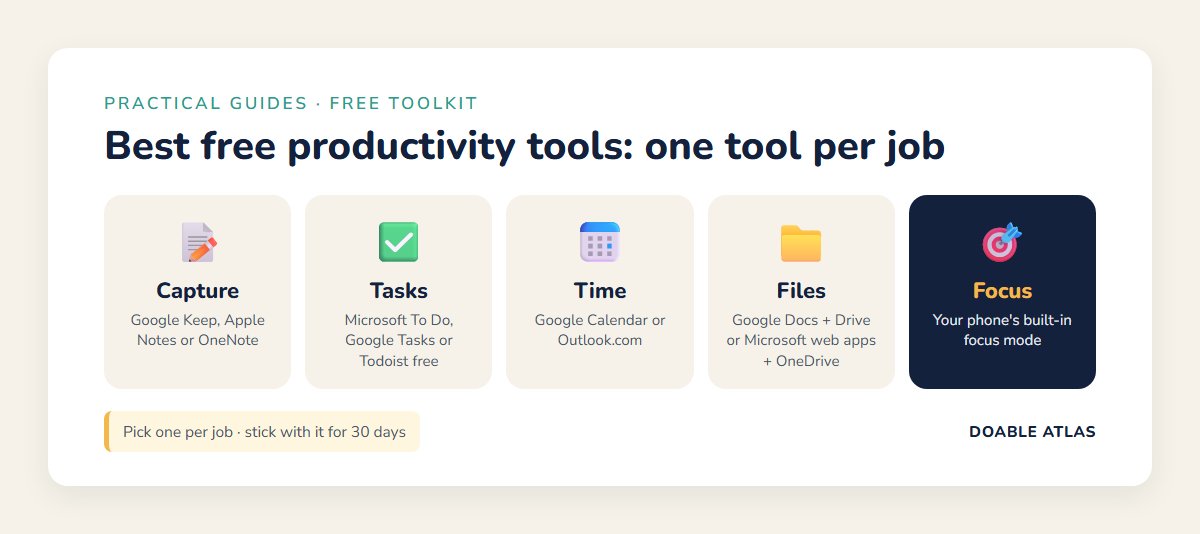
Think of your toolkit in five jobs. You need exactly one answer for each:
- Capture: where do quick thoughts and notes go?
- Tasks: where do to-dos live?
- Time: where do appointments and time blocks go?
- Files: where are documents written and stored?
- Focus: what protects you from distractions while you work?
Best free note-taking tools
Google Keep
Google Keep is the sticky-note wall of free productivity tools: fast, colorful and simple. Notes, checklists, voice memos and reminders sync across Android, iPhone and the web. It is ideal for quick capture, grocery lists and ideas you want to grab in five seconds. It is less suited to long, structured documents.
Apple Notes
If you live in the Apple ecosystem, Apple Notes is free, built in and surprisingly powerful: folders, checklists, tables, document scanning and sharing. It syncs through iCloud across iPhone, iPad and Mac, and it is also available in a web browser at iCloud.com.
Microsoft OneNote
OneNote works like a digital binder with notebooks, sections and pages. It is free with a Microsoft account and runs on Windows, Mac, phones and the web. It shines for students, research and anyone who likes organizing notes by subject.
Obsidian (for power users)
Obsidian stores notes as plain text files on your own device and lets you link ideas together. It is free for personal use and appeals to people who want full control of their files. Expect a bit more setup.
Pick one: Keep for speed, Apple Notes if you use Apple devices, OneNote for structured study notes, Obsidian if you want local files and linking.
Best free task management tools
Microsoft To Do
Microsoft To Do is clean, free and syncs everywhere. Its “My Day” view encourages you to choose a short list each morning instead of staring at everything at once, which pairs well with the advice in our guide to planning your week.
Google Tasks
Google Tasks is minimal by design. Its biggest advantage is integration: tasks appear alongside Gmail and Google Calendar, so you can turn an email into a task or see deadlines on your calendar.
Todoist (free plan)
Todoist’s free plan covers personal projects, due dates and recurring tasks, and it understands natural language such as “pay rent every month on the 1st.” It is a popular step up for people who outgrow simpler lists.
Trello (free plan)
Trello organizes work as cards on boards, moving from “To do” to “Doing” to “Done.” It is excellent for visual thinkers, side projects, home renovations or planning an event with a few people.
Pick one: To Do or Google Tasks for simple daily lists, Todoist for recurring tasks and projects, Trello if you think in boards.
Best free calendar tools
Your calendar is the backbone of any productivity system, because tasks without time rarely get done. Both of these are free with an account:
- Google Calendar: shared calendars, reminders, color coding, appointment booking pages and tight links to Gmail and Google Tasks.
- Outlook.com Calendar: Microsoft’s free calendar, which works well if you use Outlook, Microsoft To Do and OneNote.
Whichever you choose, use it for more than appointments. Block time for your most important work, a technique explained step by step in our guide to time blocking for beginners.
Best free document and storage tools
Google Docs, Sheets and Drive
A free Google account includes Docs, Sheets, Slides and Google Drive, with 15 GB of storage shared across Gmail, Google Drive and Google Photos. Real-time collaboration makes it the default choice for families, clubs and students who share files.
Microsoft 365 web apps and OneDrive
Microsoft offers free web versions of Word, Excel and PowerPoint with a Microsoft account, plus 5 GB of OneDrive storage. Files stay compatible with the desktop Office formats many workplaces use.
iCloud Drive
Apple includes 5 GB of free iCloud storage, which many people use up quickly with phone backups and photos. It is convenient for Apple users, but check your storage before relying on it for important files.
Not sure where to start with spreadsheets? Our step-by-step guide to creating a simple budget spreadsheet works in Google Sheets or free Excel on the web.
Best free focus tools
The most underrated free productivity tools are already built into your phone and computer:
- Focus modes on iPhone and Mac: silence specific apps and people during work hours or study time.
- Digital Wellbeing on Android: Focus mode pauses distracting apps, and app timers limit how long you spend in them.
- Focus sessions in Windows: the Clock app includes a focus timer that can pair with Do Not Disturb.
- Any kitchen timer: a simple 25-minute timer still beats most apps for starting hard work.
For the science behind protecting attention, see our guide on how to focus without getting distracted.
Best free productivity tools at a glance
If you only skim one section, make it this one. These are the best free productivity tools for each job, with the main reason to choose each:
- Fastest note capture: Google Keep, because it opens instantly and syncs everywhere.
- Best notes for Apple users: Apple Notes, built in with scanning and sharing.
- Best structured notes: Microsoft OneNote, a free digital binder.
- Simplest to-do list: Microsoft To Do or Google Tasks.
- Best for recurring tasks: Todoist’s free plan with natural-language dates.
- Best visual planner: Trello’s free boards.
- Best free calendar: Google Calendar, or Outlook.com if you live in Microsoft apps.
- Best free office suite: Google Docs, Sheets and Drive, with 15 GB of shared storage.
- Best focus tool: the focus mode already on your phone.
Every one of these best free productivity tools works on the web and on phones, so you can start on one device and finish on another.
Pick your stack: free toolkits by lifestyle
Here is how to combine the best free productivity tools into a simple stack, depending on what your days look like.
| You are… | Notes | Tasks | Calendar and files |
|---|---|---|---|
| A student | OneNote (a notebook per class) | Microsoft To Do | Google Calendar + Google Docs |
| A busy parent | Google Keep (shared lists) | Google Tasks | Shared Google Calendar |
| A freelancer | Obsidian or Apple Notes | Todoist free plan | Google Calendar + Drive |
| An Apple-only household | Apple Notes | Apple Reminders | Apple Calendar + iCloud Drive |
| A small volunteer team | Google Docs | Trello free plan | Shared Google Calendar + Drive |
Notice what is missing: there is no row with six apps. A good stack is boring, connected and easy to keep up.
Free-plan gotchas to check before you commit
Free tools are generous, but they are also designed to encourage upgrades. Before you move your life into one, run through this checklist:
- Storage limits: free storage is often shared across email, photos and files. Photos usually fill it first.
- Device limits: some free plans restrict how many devices can sync.
- Collaboration limits: sharing may be capped at a certain number of people or boards.
- History and backups: version history or deleted-item recovery may be shorter on free plans.
- Export options: make sure you can download your data in a standard format.
- Privacy settings: review sharing defaults, especially for shared family calendars and documents.
- Account security: turn on two-step verification for any account that holds your files. Our guide to creating strong passwords explains how.
How to set up your free toolkit in one afternoon
- Audit what you already use (15 minutes). List every app where notes, tasks or files currently live. Circle the ones you actually open each week.
- Choose one tool per job (10 minutes). Use the stack table above. Favor tools connected to accounts you already have.
- Move only what is active (45 minutes). Copy current tasks and important notes into the new tools. Archive the rest instead of migrating everything.
- Install on every device (15 minutes). Phone, computer and tablet. Turn on sync and test it.
- Set two daily triggers (5 minutes). A morning reminder to review today’s tasks and an evening reminder to capture loose ends.
- Delete or hide the losers. Remove duplicate apps from your home screen so you are not tempted to split your system again.
If digital clutter is part of the problem, our digital declutter checklist helps you clear out old apps, files and notifications first.
The 30-day scorecard: is a free tool worth keeping?
After a month, judge each of your free productivity tools with five honest questions. Give each one a point for every “yes.” A tool that scores 4 or 5 is a keeper; 2 or less means it is time to simplify.
| Question | What a “yes” looks like |
|---|---|
| Did I open it at least five days a week? | It became a habit, not an occasional visit. |
| Do I trust it as the only place for this job? | No backup sticky notes or duplicate lists. |
| Does it save me time overall? | Less time searching, re-writing or remembering. |
| Does it work smoothly on my phone and computer? | Sync is fast and nothing gets lost. |
| Have I stayed within the free plan comfortably? | No constant upgrade prompts or limits blocking you. |
This simple scorecard keeps your toolkit lean. The goal of free productivity tools is less friction, not more apps to maintain.
Free tools for specific situations
Beyond the core stack, a few free productivity tools solve specific everyday problems well.
Scanning paper documents
You probably do not need a separate scanner app. Apple Notes and the Files app on iPhone can scan documents to PDF, and the Google Drive app on Android includes a scan feature. Scanned receipts, warranties and forms can then live in one cloud folder instead of a kitchen drawer.
Video calls
Google Meet and Microsoft Teams both offer free personal versions, and Zoom has a free plan with time limits on group meetings. For quick family or club calls, use whichever service most of your group already has.
Shared household lists
A shared Google Keep note or a shared list in Microsoft To Do or Apple Reminders replaces the classic “who bought the milk?” text thread. Everyone sees updates in real time.
Habit tracking
A recurring task in your to-do app or a simple checklist in your notes app is often enough. If you want more structure, our guide to building better habits explains what actually makes habits stick.
AI assistants
Free versions of AI chat assistants can help draft emails, summarize long documents or brainstorm a plan. Treat their answers as a first draft: check facts, avoid pasting sensitive personal or work information and keep your final decisions in your own task list and calendar.
Common mistakes with free productivity tools
Tool hopping
Switching apps every few weeks feels productive but resets your habits every time. Commit to your stack for at least 30 days before judging it.
Over-organizing
Twenty color-coded tags and nested folders look impressive and collapse under real life. Start with three lists: Today, This Week and Someday.
Using a task app as a wish list
A list with 200 items is a guilt generator. Keep your active list short and move long-term ideas to a separate “Someday” list.
Ignoring the calendar
Tasks without time get postponed. Put your most important task on the calendar as a block, not just on a list.
Skipping the weekly review
Even the best free productivity tools drift out of date. Spend 20 minutes each week clearing inboxes, updating lists and planning the next seven days. Our weekly reset checklist makes it easy.
Frequently asked questions
What are the best free productivity tools for beginners?
For beginners, the easiest stack is Google Keep or Apple Notes for notes, Microsoft To Do or Google Tasks for to-dos, Google Calendar for scheduling and Google Docs with Drive for files. All are free, sync across devices and take minutes to learn.
Are free productivity tools safe to use?
Tools from established providers are generally safe for everyday personal use, especially if you turn on two-step verification and review sharing settings. Avoid storing highly sensitive information in any tool unless you understand how it is protected.
Do I need a paid app to be productive?
No. Most people get more benefit from consistently using one free tool per job than from paying for advanced features. Upgrade only when you repeatedly hit a specific limit.
What is the best free to-do list app?
Microsoft To Do and Google Tasks are excellent free choices for simple lists. Todoist’s free plan is a strong option if you want recurring tasks and natural-language due dates.
How many productivity apps should I use?
Usually three to five: one each for notes, tasks, calendar and files, plus a built-in focus mode. More than that tends to create duplication and confusion.
The takeaway
The best free productivity tools are not the flashiest ones. They are the ones you trust enough to check every day. Pick one tool for notes, one for tasks, one for your calendar and one for files, connect them to accounts you already use and protect your focus with your phone’s built-in settings.
Start today: choose your stack from the table above, move only your active tasks and set a morning reminder to review your list. Thirty days from now, you will have a system that works quietly in the background, which is exactly what a good tool should do.