
A dentist appointment lives in a text message, the school play is on a paper flyer stuck to the fridge, your work meetings sit in one app and your weekend plans are in your head. Then two things land on the same Saturday morning and you only find out when it is too late. A good calendar app fixes this by putting every commitment in one place that reminds you before you need to leave.
The good news is that you do not have to pay for one. This guide compares the best free calendar apps for iPhone, Android, Windows, Mac and the web. You will see what each app does well, where its free version stops and who it suits, plus a simple color system, a sample time-blocked day and a 10-minute weekly review so your new calendar actually gets used.
Quick answer
For most people the best free calendar apps are Google Calendar (works everywhere and shares easily), Apple Calendar (best if your family uses iPhones) and Outlook Calendar (best if you already use Outlook or Microsoft 365 for work). Add TimeTree for a simple family calendar, Proton Calendar for privacy, Notion Calendar for a polished view of Google calendars and Thunderbird for a free desktop calendar. Pick the one that matches the phone and email you already use.
In this guide
What makes the best free calendar apps worth using?
Almost every calendar app can store an event with a time and a reminder. The differences show up in everyday use. Before comparing names, decide which of these features matter to you:
- Sync across devices. An event added on your phone should appear on your laptop within seconds.
- Sharing. Can you share one calendar with a partner, a team or a club, and control whether they can edit it?
- Reminders that work. Multiple alerts per event, travel-time alerts and notifications you actually notice.
- Quick entry. Typing “lunch with Sam Friday 12:30” and having the app understand it saves a lot of tapping.
- Multiple calendars and colors. Separate work, family, health and personal so you can see the balance of your week.
- Time zones. Important if you travel or work with people in other countries.
- Booking pages. Some apps let other people pick a free slot from your calendar, which ends the back-and-forth emails.
- Privacy. Who can read your schedule, and is the data encrypted?
No single app wins on every point. The trick is to choose based on the ecosystem you already live in, then fill any gap with one extra free tool.
The best free calendar apps compared
| App | Works on | Best for | Free version limits |
|---|---|---|---|
| Google Calendar | Web, Android, iPhone | Almost everyone; sharing | Advanced booking features need Workspace |
| Apple Calendar | iPhone, iPad, Mac, iCloud.com | Apple households | No Android app |
| Outlook Calendar | Web, Windows, Mac, Android, iPhone | Work and email in one place | Ads in the free Outlook.com version |
| TimeTree | Android, iPhone, web | Families and couples | Ads; extras in Premium |
| Proton Calendar | Web, Android, iPhone | Privacy | Limited number of calendars |
| Notion Calendar | Mac, Windows, iPhone, web | A sleek view of Google calendars | Needs a Google account |
| Thunderbird | Windows, Mac, Linux | A free desktop calendar | Desktop only; setup takes a few minutes |
Features and free-plan limits change from time to time, so check each app’s current terms before you move your whole life into it.
Google Calendar: the best free calendar app for most people
Google Calendar is free with any Google account and runs in every browser, on Android and on iPhone. Its biggest strength is sharing. You can create separate calendars for family, sports or a book club, share each one with different people and choose whether they can only see free/busy time or edit events (Google Calendar Help).
Other highlights:
- Events from Gmail, such as flights and restaurant bookings, can appear automatically.
- You can add several reminders per event and set default reminders for each calendar.
- Personal accounts can create a basic appointment booking page so others can choose a time.
- Calendars from other apps can be added using a link, such as a school or sports schedule.
Watch out for: shared calendars can get crowded. Hide calendars you do not need to see every day using the checkboxes in the side panel.
Best for: mixed households with both Android and iPhone, students and anyone who wants one calendar on every device.
Apple Calendar: best free calendar app for iPhone and Mac
Apple Calendar is already on every iPhone, iPad and Mac, and syncs through iCloud for free. If you use Family Sharing, a shared Family calendar is created for you, so everyone sees the dentist appointment and the school concert (Apple Support).
Useful features include travel time alerts that tell you when to leave, Siri for quick entry (“Add lunch with Alex tomorrow at noon”) and the ability to show Google and Outlook calendars inside the same app. You can also open your calendar on a Windows computer at iCloud.com.
Watch out for: there is no Android app, so a partner on Android will need Google Calendar or a shared calendar link instead.
Best for: people and families who all use Apple devices.
Outlook Calendar: best free calendar app for work and email together
Outlook Calendar comes free with an Outlook.com account and is built into the Outlook apps for Windows, Mac, Android and iPhone. It is the natural choice if your job runs on Microsoft 365, because your personal and work calendars can sit side by side in one app. You can share calendars, see colleagues’ availability and turn emails into meetings quickly (Microsoft Support).
Watch out for: the free Outlook.com version shows ads in the inbox, and the newer Outlook app for Windows replaces the old Mail and Calendar apps, so the layout may look different from older guides.
Best for: office workers who want email and calendar in one place.
TimeTree: best free calendar app for families
TimeTree was designed around sharing. You create a calendar for a group, such as your household, invite members and everyone can add events, comment on them and see changes in a feed. It is simpler than setting up shared calendars in Google, which makes it popular with couples, families and small clubs (TimeTree).
Watch out for: the free version includes ads, and some extras are part of a paid Premium plan. TimeTree also works best when everyone in the group installs the app.
Best for: families who want one easy calendar that kids and grandparents can use too.
Proton Calendar: best free calendar app for privacy
Proton Calendar is made by the company behind Proton Mail. Event details are end-to-end encrypted, which means Proton itself cannot read what you write in titles, notes or locations (Proton). It works on the web, Android and iPhone and can import events from other calendars.
Watch out for: the free plan limits how many calendars you can create, and sharing works most smoothly with other Proton users.
Best for: people who keep medical, legal or other sensitive appointments in their calendar.
Notion Calendar: best free calendar app for a cleaner view
Notion Calendar (formerly called Cron) is a free app that sits on top of your Google calendars and gives them a fast, minimal design with handy keyboard shortcuts. You can see several Google accounts at once, share your availability with a few clicks and link events to Notion pages if you use Notion for notes (Notion).
Watch out for: it needs a Google account, so it is not a stand-alone calendar.
Best for: people who live in Google Calendar on a computer and want something faster and calmer.
Thunderbird: best free desktop calendar app
Thunderbird is a free, open-source email program from the Mozilla community with a built-in calendar and task list. It runs on Windows, Mac and Linux and can connect to Google and other calendars, so you can see everything in one desktop window (Thunderbird).
Watch out for: it is a desktop app, so you will still need a phone calendar that syncs with the same account.
Best for: people who prefer desktop software and want an alternative to the Outlook app.
Which free calendar app should you choose?
| If you… | Start with | Optional add-on |
|---|---|---|
| Use Android or a mix of phones | Google Calendar | Notion Calendar on your computer |
| Have an all-Apple family | Apple Calendar with Family Sharing | iCloud.com on a work PC |
| Work in Microsoft 365 | Outlook Calendar | Your personal calendar added inside Outlook |
| Need a family calendar kids can use | TimeTree | Your own calendar for private events |
| Care most about privacy | Proton Calendar | Proton Mail |
| Need people to book time with you | Google Calendar booking page | Calendly’s free plan |
If you are torn between two, pick the one tied to the email address you check most. Invitations arrive there, and accepting them adds events automatically.
How to set up a free calendar app in 20 minutes
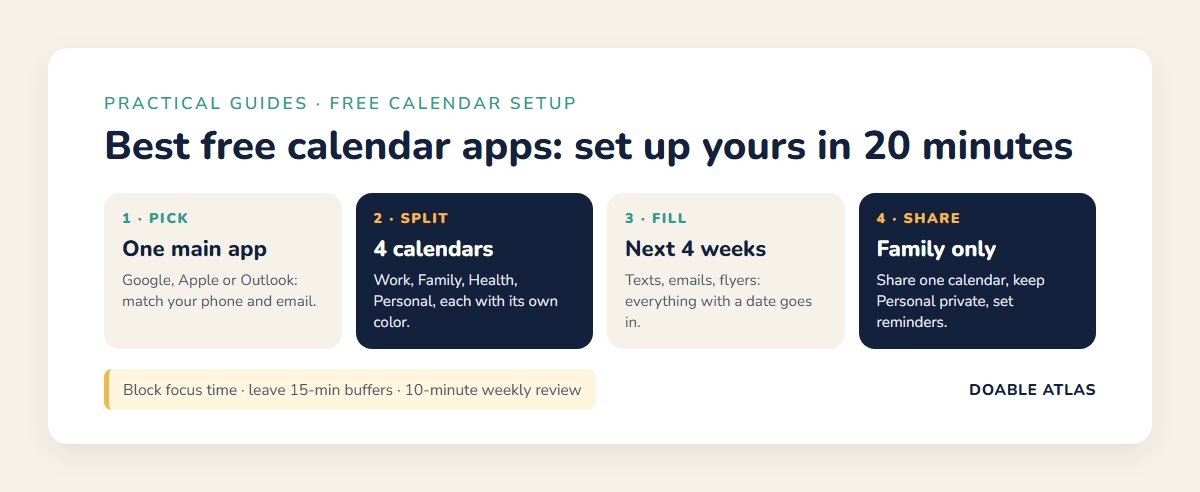
- Pick one main calendar app. Install it on your phone and computer and sign in with the same account.
- Create four calendars: Work, Family, Health and Personal. More than six becomes hard to manage.
- Give each a color using the color system below.
- Set default reminders: 30 minutes for most events, one day plus two hours for appointments that need preparation.
- Add the next four weeks. Go through texts, emails and paper flyers and enter everything with a date.
- Add repeating events such as bill due dates, trash day, practice and medication refills.
- Share what others need. Share Family with your partner and keep Personal private.
- Subscribe to outside calendars such as your school district, sports team or public holidays.
- Turn on notifications for the calendar app and test one reminder.
- Delete or hide old calendars you no longer use so they stop cluttering the view.
A simple color system for any calendar app
Color lets you see the shape of your week at a glance. Too many colors defeat the purpose, so keep it to five:
Meetings, shifts, deadlines.
School events, pickups, visits.
Doctor, dentist, medication refills.
Exercise, hobbies, friends.
Bills, renewals, tax dates.
After a week, look at the colors. If your week is all blue with no yellow, that is a signal worth paying attention to.
Time blocking: use your free calendar for more than appointments
Most people only put meetings in their calendar and keep their real work on a to-do list. Time blocking means giving important tasks their own slot, like an appointment with yourself. Research on “implementation intentions” suggests that deciding exactly when and where you will do something makes you much more likely to follow through (Gollwitzer & Sheeran, 2006).
Here is a sample weekday built in a free calendar app:
| Time | Block | Calendar |
|---|---|---|
| 7:30–8:00 | School run | Family |
| 9:00–10:30 | Focus block: most important task | Work |
| 10:30–11:00 | Email and messages | Work |
| 12:30–13:00 | Walk and lunch | Personal |
| 15:30–16:00 | Admin: bills, forms, calls | Money |
| 18:30–19:30 | Practice pickup and dinner | Family |
Leave gaps between blocks. People routinely underestimate how long tasks take, a pattern psychologists call the planning fallacy (Buehler, Griffin & Ross, 1994). A 15-minute buffer between blocks absorbs overruns without wrecking the rest of the day. For a full weekly method, see our guide on how to plan your week.
The 10-minute weekly calendar review
A calendar only works if you trust it. Once a week, Sunday evening or Friday afternoon, run through this short checklist:
- Look back one week. Move anything unfinished to a new slot or your task list.
- Look ahead two weeks. Do any events need preparation, tickets, a gift or a babysitter? Add a task now.
- Check clashes. Two events at once, or a meeting right when you need to leave for pickup.
- Protect one block for your most important goal next week.
- Sync with your household. A two-minute “who is driving where” chat prevents most family mix-ups.
If tasks keep spilling out of your calendar, pair it with one of the best free task management apps: tasks without a fixed time go on the list, and anything with a date goes on the calendar.
How to share a free calendar with family or a team
- Share a calendar, not your whole account. Create a separate Family or Team calendar and share only that one.
- Choose the right permission. “See only free/busy” for colleagues, “make changes” for a partner.
- Agree on a few rules. Who adds events, how far ahead and what goes in the title. “Mia – dentist – Dad drives” is far better than “dentist”.
- Use invites for shared events. Inviting someone sends the event to their own calendar, whatever app they use.
- Check privacy settings. Make sure a calendar is not accidentally set to public.
Calendar sync problems and how to fix them
| Problem | Likely cause | Fix |
|---|---|---|
| Events missing on your phone | That calendar is turned off in the phone’s settings | Open the app’s calendar list and tick it, or check the account’s sync settings |
| Times are off by hours | Wrong time zone on a device or event | Set automatic time zone on every device |
| Duplicate events | The same calendar added twice through two accounts | Remove one of the connections |
| No reminders | Notifications off or battery saver blocking the app | Allow notifications and exclude the app from battery saving |
| Subscribed calendar never updates | Some apps refresh outside calendars only every few hours | Be patient, or re-add the link if it has been days |
Myths vs facts about free calendar apps
Tips to get more from the best free calendar apps
- Put the address in the location field. Most apps can then calculate when you need to leave.
- Paste details into the notes. Booking codes, video links and what to bring save a frantic search later.
- Use all-day events for deadlines so they sit at the top of the day without blocking time.
- Add a widget to your phone’s home screen so today’s plan is always one glance away.
- Turn email confirmations into events right away. Our guide on how to manage email overload shows how to keep your inbox from hiding dates.
- Schedule “nothing” sometimes. An empty evening blocked as “Rest” is easier to protect.
Free vs paid calendar apps: is it worth upgrading?
Paid calendar apps such as Fantastical’s premium plan or full scheduling services add things like advanced natural-language entry, weather in your calendar, team scheduling polls and multiple booking pages. They can be worth it if you run a business that takes many bookings or juggle several work accounts every day.
For personal and family life, the best free calendar apps are more than enough. Try your free setup for a month first. If you keep hitting the same limit, that tells you exactly which paid feature you need, if any. For more free software that works well alongside a calendar, see our list of the best free productivity tools.
Our picks: the best free calendar apps at a glance
Google Calendar: free, everywhere, easy sharing.
Apple Calendar with Family Sharing.
TimeTree: one shared calendar everyone can use.
Proton Calendar with end-to-end encryption.
Frequently asked questions
What is the best free calendar app?
For most people, Google Calendar. It is free, works on Android, iPhone and the web and makes sharing simple. If your whole family uses Apple devices, Apple Calendar is just as good.
What is the best free calendar app for families?
TimeTree is built for shared family calendars and is very easy to learn. Google Calendar and Apple Calendar with Family Sharing are also excellent free choices.
Can I use Google Calendar on an iPhone?
Yes. You can install the Google Calendar app, or add your Google account in the iPhone’s settings so your events show up in Apple Calendar.
Is there a free calendar app without ads?
Google Calendar, Apple Calendar, Proton Calendar, Notion Calendar and Thunderbird do not show ads inside the calendar. The free Outlook.com inbox and TimeTree’s free plan do include ads.
How do I combine all my calendars in one app?
Add each account to one main app. Apple Calendar, Outlook and Thunderbird can show Google, iCloud and Outlook calendars together, and Notion Calendar can show several Google accounts at once.
Which free calendar app is the most private?
Proton Calendar, because it encrypts event details end to end so the provider cannot read them.
The takeaway
The best free calendar apps are the ones you will open every day. For most people that means Google Calendar, Apple Calendar or Outlook, chosen to match the phone and email you already use. Add TimeTree if your family needs something simpler, or Proton Calendar if privacy comes first.
Set it up tonight: create four calendars, give them colors, add the next four weeks and turn on reminders. Then book your first 10-minute weekly review. A month from now you will wonder how you ever kept track of everything without it.