

You jot a grocery list in one app, meeting notes in another and a great idea on the back of a receipt that disappears by Friday. Notes are only useful if you can find them again, and most of us are scattered across three or four places without meaning to be.
The good news is that you do not need to pay for a great note app. This guide compares the best free note taking apps available today, explains what each free plan really includes, and helps you choose one based on how you think and which devices you use. You will also get a simple setup that keeps notes findable for years, not just weeks.
Quick answer
The best free note taking apps for most people are Google Keep (quick notes and lists), Apple Notes (iPhone, iPad and Mac users), Microsoft OneNote (notebook-style notes and handwriting), Notion (notes plus projects and databases) and Obsidian (private notes stored as files on your device). Joplin, Simplenote, Standard Notes, Zoho Notebook and Logseq are strong alternatives. Pick one main app, and use it for at least 30 days before judging it.
In this guide
How we chose the best free note taking apps
“Free” can mean very different things. Some apps are completely free, some have generous free plans and some offer a free tier so limited that it is really a trial. To make this list of the best free note taking apps, each option had to meet five tests:
- Genuinely usable for free: you can rely on it every day without hitting a wall after a week.
- Sync or backup options: your notes should survive a lost phone.
- Good search: finding a note should take seconds.
- Easy export: you can leave with your notes if the app changes or closes.
- Active development: the app is still maintained and updated.
Free plans change over time, so treat the details below as a guide and check each app’s current plan page before you commit. We link to the official sites so you can confirm.
The 10 best free note taking apps at a glance
| App | Best for | Platforms | Free plan in short |
|---|---|---|---|
| Google Keep | Quick notes, lists, reminders | Android, iOS, web | Free; uses your Google account storage |
| Apple Notes | Apple device owners | iPhone, iPad, Mac, iCloud web | Free; syncs with iCloud (5 GB free) |
| Microsoft OneNote | Notebooks, students, handwriting | Windows, Mac, mobile, web | Free; syncs with OneDrive (5 GB free) |
| Notion | Notes plus projects and wikis | All major platforms, web | Free plan for individuals, small file-upload limit |
| Obsidian | Private, linked notes as files | Windows, Mac, Linux, mobile | Free app; paid add-on for its own sync |
| Joplin | Open-source Evernote alternative | All major platforms | Free; sync through your own cloud |
| Simplenote | Plain, fast text notes | All major platforms, web | Completely free |
| Standard Notes | Privacy and encryption | All major platforms, web | Free tier with encrypted sync |
| Zoho Notebook | Visual, card-style notes | Mobile, desktop, web | Free |
| Logseq | Outlines and daily journals | Desktop, mobile | Free and open source |
1. Google Keep: best for quick capture
Google Keep is the sticky-note wall of the best free note taking apps. You open it, type or speak a note, and it is saved. Notes appear as colorful cards you can pin, label and archive.
- Strengths: very fast, checklists, voice notes, photo notes, time and location reminders, easy sharing with family.
- Limits: no real folders or long-document formatting; it gets messy if you store hundreds of long notes.
- Storage: notes count toward the free storage that comes with a Google account.
Choose it if most of your notes are short: shopping lists, packing lists, quick ideas and reminders. Many people pair Keep with a second tool for longer writing.
2. Apple Notes: best for iPhone, iPad and Mac
If you live in the Apple world, Apple Notes is already installed and has quietly become one of the best free note taking apps. It supports folders, tags, checklists, tables, sketches and document scanning with the camera (Apple Support).
- Strengths: zero setup, fast search (including text inside scanned documents and photos on supported devices), Smart Folders, locked notes and shared notes.
- Limits: no native Android or Windows app; you can only reach notes from a non-Apple computer through iCloud.com in a browser.
- Storage: syncs through iCloud, which includes 5 GB of free storage shared with photos and backups.
Choose it if all your devices are Apple and you want a capable app without creating another account.
3. Microsoft OneNote: best for digital notebooks
OneNote is organized like a binder: notebooks contain sections, and sections contain pages. You can click anywhere on a page and type, drop images, record audio or write with a stylus.
- Strengths: excellent for class notes and meeting notes, handwriting and drawing, free on Windows, Mac, mobile and the web.
- Limits: the free-form canvas can feel cluttered; search is good but not as instant as simpler apps.
- Storage: notebooks sync through OneDrive, which includes 5 GB free with a Microsoft account.
Choose it if you like the feel of a paper notebook, take notes with a pen on a tablet or are a student who wants one notebook per course.
4. Notion: best for notes plus projects
Notion is part note app, part database, part wiki. Every page can hold text, checklists, tables, boards and links to other pages. The free plan is generous for individuals.
- Strengths: templates for almost anything (reading lists, trip plans, habit trackers), databases that turn notes into sortable tables, strong web clipper.
- Limits: slower for quick capture, needs an internet connection for full use, and file uploads on the free plan have a small per-file size limit.
- Watch out for: spending hours building a perfect system instead of taking notes.
Choose it if you want notes, to-dos and project plans in one place and enjoy setting things up. Our list of the best free productivity tools shows how Notion fits with a calendar and task app.
5. Obsidian: best for private, linked notes
Obsidian stores every note as a plain Markdown text file in a folder on your device. That means your notes are readable by any text editor, forever, even if Obsidian disappears.
- Strengths: links between notes, a graph view of connected ideas, thousands of community plugins, works fully offline, free for personal use.
- Limits: a learning curve; syncing between devices needs either Obsidian’s paid Sync add-on or a free workaround such as a cloud folder you already use.
Choose it if privacy and long-term ownership matter to you, or you are building a “second brain” of research, ideas and reading notes.
6. Joplin: best open-source Evernote alternative
Joplin is a free, open-source app with notebooks, tags, to-dos and a web clipper. You can sync it through services you may already have, such as Dropbox, OneDrive or Nextcloud, and turn on end-to-end encryption.
- Strengths: familiar notebook layout, Markdown support, imports Evernote export files, no ads.
- Limits: the interface is plainer than commercial apps, and setting up sync takes a few minutes.
Choose it if you used Evernote in the past and want a similar structure without a subscription.
7. Simplenote: best for plain text
Simplenote does one thing well: fast, synced text notes. There are no folders, just tags and a lightning-quick search. It is completely free.
- Strengths: minimal, quick to open, version history, works on every major platform.
- Limits: no images, no rich formatting beyond Markdown and no attachments.
Choose it if you write a lot of text (drafts, journaling, lists) and find feature-heavy apps distracting.
8. Standard Notes: best for privacy
Standard Notes encrypts your notes on your device before they are synced, so the company cannot read them. The free tier covers encrypted notes across devices; paid plans add more editors and storage.
- Strengths: end-to-end encryption, open-source code, a good fit for sensitive notes.
- Limits: the free plan is basic, with fewer formatting options.
Choose it if you store private information such as journal entries or personal records. Pair it with a strong passphrase; our guide on how to create strong passwords explains how.
9. Zoho Notebook: best for visual notes
Zoho Notebook organizes notes as colorful cards inside notebooks with custom covers. It supports text, checklists, audio, photos and files, and it is free.
- Strengths: attractive design, easy to browse visually, works across phone, desktop and web.
- Limits: fewer advanced features and integrations than bigger names.
Choose it if you are a visual person and want your notes to look tidy without extra effort.
10. Logseq: best for outlines and journals
Logseq is a free, open-source outliner. Each day opens with a fresh journal page where you write bullet points; tags and links connect ideas across days.
- Strengths: great for daily logs and connecting ideas, works offline, stores notes locally.
- Limits: the bullet-only style does not suit everyone, and it takes time to learn.
Choose it if you think in bullet points or want a daily journal that builds into a searchable knowledge base.
What about Evernote?
Evernote was once the default answer for note taking, but its free plan has been cut back sharply in recent years, with limits on how many notes and notebooks you can keep. It is still a capable app, but for most people on a budget it no longer belongs among the best free note taking apps. If you have an old Evernote account, export your notes (Evernote can save notebooks as .enex files) and import them into Joplin, Apple Notes, OneNote or Notion.
Which app fits how you think?
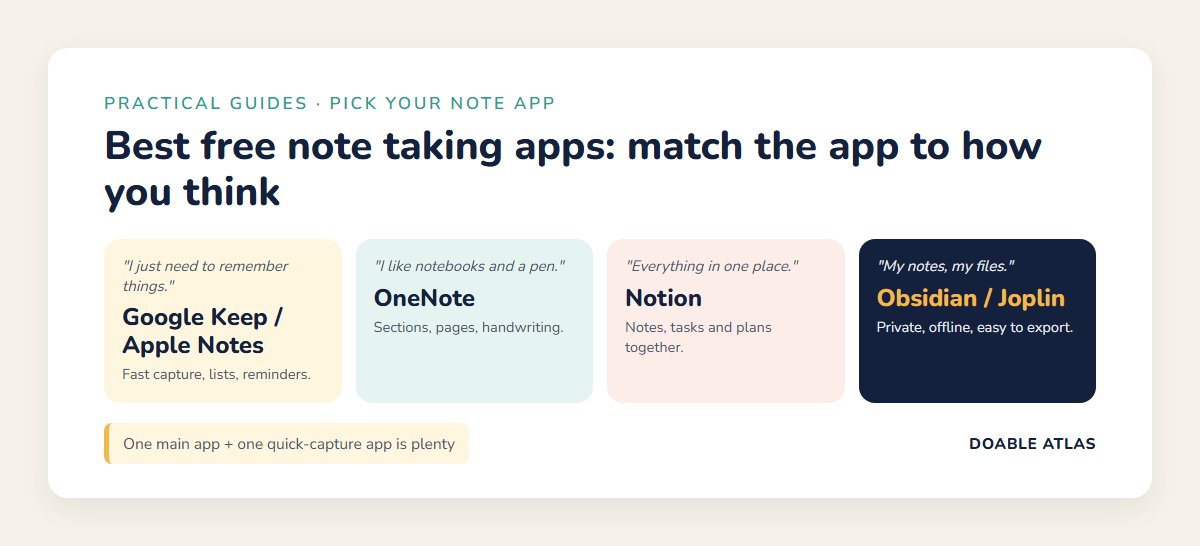
The right choice depends less on features and more on your style. Use this quick match:
Google Keep or Apple Notes. Fast capture beats structure.
OneNote. Sections and pages feel like a binder.
Notion. Notes, tasks and plans live together.
Obsidian, Joplin or Standard Notes.
Match by device
- All Apple: Apple Notes first; Obsidian if you want files you control.
- Android and Windows: Google Keep for quick notes, OneNote for longer notes.
- Mixed devices: OneNote, Notion, Simplenote or Joplin, which run almost everywhere.
- Mostly in a browser: Google Keep, Notion or Simplenote.
Handwriting vs typing: what the research says
If you are a student, you may have heard that handwritten notes help you learn better. A widely cited 2014 study found that students who took notes on laptops tended to copy lectures word for word and did worse on conceptual questions than students who wrote by hand (Mueller & Oppenheimer, 2014). However, a later replication found the advantage was smaller and less consistent than first reported (Morehead, Dunlosky & Rawson, 2019).
The practical lesson: how you take notes matters more than the tool. Summarize in your own words instead of transcribing. If you prefer handwriting, apps like OneNote, Apple Notes and Samsung Notes let you write with a stylus and still search your notes later.
A simple system that works in any app
Even the best free note taking apps fail without a little structure. This four-part system works in any of them:
- Inbox: one place where every quick note lands first. Do not sort while capturing.
- Active: notes for projects you are working on now, such as “Kitchen remodel” or “Job search.”
- Reference: things you want to keep, such as recipes, manuals, account instructions and how-tos.
- Archive: finished projects. Out of sight, still searchable.
Once a week, spend ten minutes emptying the Inbox into the other three. That habit fits naturally into a weekly review; see our guide on how to plan your week.
Name notes so you can find them
- Start with the topic, then the detail: “Car – tire sizes” or “Recipe – lentil soup.”
- For meetings and events, add the date in year-month-day order: “2026-11-14 Team meeting.”
- Use a few tags consistently, such as #home, #work and #money, rather than dozens of one-off tags.
Free plan gotchas to check before you commit
Before you move years of notes into a new app, check these five things. They are where free plans most often disappoint:
| Check | Why it matters | How to test it |
|---|---|---|
| Device limits | Some free plans limit how many devices can sync. | Install on phone and computer on day one. |
| Storage and upload limits | Photos and PDFs fill free storage fast. | Attach a large PDF and a few photos. |
| Offline access | You need notes on planes and in bad signal areas. | Turn on airplane mode and open a note. |
| Export format | Your exit route if the app changes. | Export one notebook and open the files. |
| Version history | Recovers notes you overwrite by accident. | Edit a note, then look for “history.” |
How to move your notes to a new app
Switching apps feels daunting, but it rarely needs to be done all at once.
- Export everything from the old app first, and keep the export file in a backup folder.
- Import what the new app supports. Joplin and Notion import Evernote files; OneNote and Apple Notes have their own importers.
- Move only active notes by hand if there is no importer. Leave old material in the export file.
- Keep the old app read-only for a month, then remove it when you are confident nothing is missing.
Your notes are part of your digital life, so include them in your backup routine. Our guide on how to back up your phone covers the 3-2-1 rule.
Myths vs facts about note apps
Your 30-day note app test
Reading reviews only goes so far. The real test is daily use. Try your top choice for 30 days with this plan:
| Week | Focus | Question to answer |
|---|---|---|
| 1 | Capture everything in the new app | Is it fast enough to open and type? |
| 2 | Set up Inbox, Active, Reference, Archive | Can I find a note in under 10 seconds? |
| 3 | Use it on every device you own | Does sync work reliably? |
| 4 | Export a notebook, review your habits | Would I miss it if it disappeared? |
If the answer to week four is yes, you have found your app. If not, try your second choice; your notes are already exported and ready to move.
Note app tips for specific needs
For students
OneNote and Notion work well for one notebook or page per class. Record the date and lecture topic at the top of every page, and summarize each lecture in three sentences when class ends.
For busy parents
Shared notes in Google Keep or Apple Notes keep grocery lists, school dates and packing lists in sync for the whole family. Everyone sees edits instantly.
For work meetings
Use a template with three headings: decisions, action items (with owners and dates) and open questions. Move action items into your task app right after the meeting. Pair this with time blocking so the actions actually get done.
For writers and researchers
Obsidian and Logseq shine here because linking ideas across notes helps you see connections you would otherwise miss.
Frequently asked questions
What is the best free note taking app overall?
For most people, it is the one built for their devices: Apple Notes on Apple devices, and Google Keep plus OneNote on Android and Windows. Notion and Obsidian are the best choices if you want more structure or more control.
Is Google Keep or OneNote better?
Google Keep is better for short notes, lists and reminders. OneNote is better for long notes, class notebooks and handwriting. Many people use both.
Which free note app is most private?
Standard Notes and Joplin offer end-to-end encryption, and Obsidian keeps notes as files on your own device unless you choose to sync them.
Can I use a note app without the internet?
Yes. Obsidian, Logseq, Joplin and Simplenote work offline, and most others cache notes for offline reading. Always test offline access before a trip.
Are free note apps safe for passwords?
No. Even encrypted note apps are not designed for passwords. Use a dedicated password manager instead and keep your notes for everything else.
How many note apps should I use?
Ideally one main app for everything, plus optionally one quick-capture app on your phone. More than that usually means notes get lost.
The takeaway
The best free note taking apps are good enough that the tool is rarely the problem. The real difference comes from choosing one app that fits your devices and thinking style, capturing everything in one inbox and spending ten minutes a week tidying up.
Start today: pick one app from this list, install it on your phone and computer, and move just your three most important notes into it. In a month, you will wonder how you ever kept track of things on receipts and scattered screenshots.