

Phones get dropped in pools, left in taxis and quietly stop turning on. When that happens, the phone itself is replaceable. The photos of your kids, years of messages, your contacts and two-factor codes often are not. The difference between a bad afternoon and a real loss is whether you know how to back up your phone, and whether you actually did it.
This guide walks you through how to back up your phone step by step on both iPhone and Android, what each backup includes (and the surprising things it skips), how to back up to a computer without paying for cloud storage and how to set up a simple routine so you never have to think about it again.
Quick answer
How to back up your phone: on iPhone, turn on iCloud Backup in Settings (tap your name, then iCloud, then iCloud Backup) or back up to a computer with Finder or the Apple Devices app. On Android, turn on Google backup in Settings (usually under Google or System, then Backup). Then make sure photos sync to a photo service, back up messaging apps like WhatsApp separately and keep a second copy on a computer or drive.
In this guide
Why backing up your phone matters
Most people only learn how to back up your phone after losing one. A backup protects you from far more than a cracked screen:
- Loss and theft: a new phone can be restored to look almost exactly like the old one.
- Water damage and hardware failure: phones can die without warning, even when they look fine.
- Software problems: a failed update or a factory reset wipes everything stored only on the device.
- Upgrading: a backup makes moving to a new phone fast and painless.
- Scams and ransomware: if a device is compromised, a clean backup lets you start over.
The backup rule that professionals use
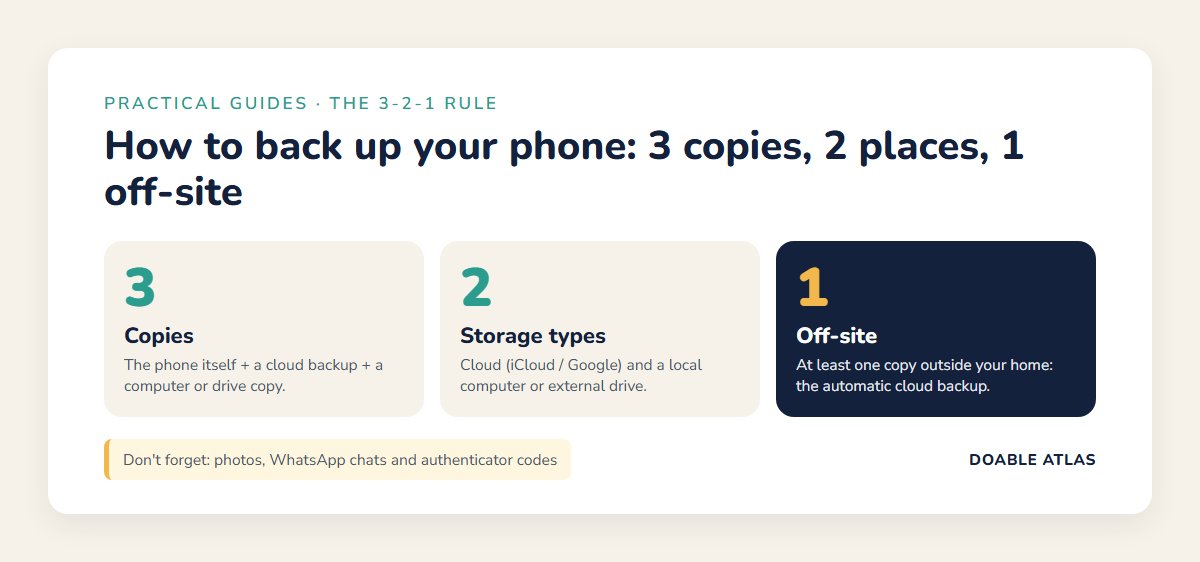
IT professionals often follow the 3-2-1 rule: keep three copies of important data, on two different types of storage, with one copy stored somewhere else, such as the cloud. For a phone, that can be as simple as:
- The data on your phone itself (copy one).
- An automatic cloud backup such as iCloud or Google (copy two, off-site).
- A periodic backup to your computer or an external drive (copy three, different storage type).
You do not need to be perfect on day one. Getting the automatic cloud backup working covers the most common disasters. The computer copy adds a safety net.
How to back up your iPhone
Option 1: iCloud Backup (automatic)
- Open Settings and tap your name at the top.
- Tap iCloud, then iCloud Backup.
- Turn on Back Up This iPhone.
- Tap Back Up Now to create your first backup while connected to Wi-Fi.
After that, your iPhone backs up automatically when it is connected to power, locked and on Wi-Fi, usually overnight. You can check the date and time of the last successful backup on the same screen.
Storage note: Apple includes 5 GB of free iCloud storage, which fills quickly. If your backup does not fit, you can reduce what is included, store photos elsewhere or upgrade to a paid iCloud+ plan. Apple’s iCloud support pages explain the current options (Apple iCloud Support).
Option 2: Back up to a computer (free)
- On a Mac: connect your iPhone with a cable, open Finder, select your iPhone in the sidebar and click Back Up Now.
- On Windows: use the Apple Devices app (or iTunes on older setups), select your iPhone and choose Back Up Now.
Choose Encrypt local backup and set a password you will remember. Encrypted backups include saved passwords, Health data and Wi-Fi settings that unencrypted backups leave out. Store that password in your password manager; without it, the backup cannot be restored.
How to back up your Android phone
Menus vary between Samsung, Google Pixel, Motorola and other brands, but the basics are the same.
Option 1: Google backup (automatic)
- Open Settings.
- Look for Google, then Backup, or System, then Backup. On Samsung phones, also check Accounts and backup.
- Turn on backup to your Google account.
- Tap Back up now for your first backup.
Google backup can include app data, call history, contacts, device settings and SMS messages, depending on your phone. Google’s help center lists what is included (Google Android Help). Backups use your Google account storage, and free Google accounts include 15 GB shared across Gmail, Drive and Photos.
Option 2: Manufacturer backup
Some manufacturers offer their own backup services, such as Samsung’s cloud and Smart Switch tools. These can be useful for brand-specific settings and for moving to a new phone from the same maker.
Option 3: Copy to a computer
Connect your Android phone with a USB cable, choose File transfer on the phone’s notification and copy the DCIM (camera), Pictures, Download and Documents folders to your computer. On a Mac, Google’s Android File Transfer tool or the manufacturer’s app may be needed.
What your phone backup does not include
This is where many people get burned. Knowing how to back up your phone also means knowing the gaps.
| Data | Covered by a standard backup? | What to do |
|---|---|---|
| Photos and videos | Often stored separately | Turn on iCloud Photos, Google Photos or another photo service, and keep a computer copy. |
| WhatsApp chats | No, managed inside the app | WhatsApp: Settings, Chats, Chat backup (iCloud on iPhone, Google Drive on Android). |
| Authenticator app codes | Depends on the app | Turn on the app’s own cloud sync or save recovery codes for each account. |
| Music and movies you bought | Re-downloadable | Usually no action needed; purchases stay in your account. |
| Files in third-party apps | Varies by app | Check each important app’s settings for export or sync. |
| Voicemails and call recordings | Varies by carrier and phone | Save important ones as files and copy them off the phone. |
The authenticator row is especially important. If you use an app for two-step verification and lose your phone without a backup, getting back into accounts can take days. Our guide on how to create strong passwords explains two-step verification and why recovery codes matter.
Backing up photos the smart way
Photos are usually the most irreplaceable thing on a phone, and also the biggest. A few tips:
- Pick one main photo service. iCloud Photos for Apple households, Google Photos for Android or mixed families.
- Understand sync versus backup. With sync, deleting a photo on your phone can delete it from the cloud too. Keep a second copy on a computer or drive for true backup.
- Export once a year. Download your library to an external drive every January. It is a simple, reliable habit.
- Clean as you go. Deleting blurry duplicates and old screenshots keeps your storage and your backups lean.
Backup readiness check
Answer these six questions to see whether you could survive losing your phone today.
- Can you see a “last backup” date from the past week in your phone’s settings?
- Do your photos appear in a cloud photo library or on your computer?
- Are your messaging apps backing up their chats?
- Do you have recovery codes or cloud sync for your authenticator app?
- Do you know your Apple ID or Google account password without looking at your phone?
- Have you made a computer or drive copy in the past three months?
Scoring: six yes answers means you are well protected. Four or five means you have a gap worth fixing this week. Three or fewer means set aside 30 minutes today, starting with question 1.
Question 5 matters more than it seems. If your account password lives only in the phone you just lost, you may not be able to restore anything. Store it in a password manager you can reach from another device, or write it down and keep it somewhere safe at home.
A simple backup routine
- Daily (automatic): cloud backup and photo sync run overnight while charging.
- Monthly (5 minutes): open backup settings, confirm the last backup date and check storage space.
- Quarterly (20 minutes): make a computer or drive backup and copy your photo library.
- Before any big change: back up before major software updates, repairs or trading in your phone.
Put the monthly check on your calendar as a recurring event. If you are building a set of reliable digital habits, our guide to the best free productivity tools shows how to keep reminders and tasks in one place.
How to restore a backup to a new phone
iPhone
When you set up a new or reset iPhone, choose Restore from iCloud Backup (sign in and pick the latest backup) or Restore from Mac or PC (connect to the computer that holds your backup). Keep the phone on Wi-Fi and power until apps and photos finish downloading.
Android
During setup, sign in to the same Google account and choose to restore from your backup. Select the most recent device backup and the apps you want back. Manufacturer tools can also transfer data directly from an old phone.
Test this once before you need it. Even confirming that you can see your backup in the setup list removes a lot of stress later.
Backing up the small things people forget
When people think about how to back up your phone, they picture photos. But some of the most painful losses are small items that quietly live on the device.
Contacts and calendars
Make sure contacts and calendars sync to your Apple ID, Google account or Microsoft account, not just “On My iPhone” or local phone storage. On iPhone, check Settings, then Contacts, then Default Account. On Android, open the Contacts app settings and confirm which account new contacts are saved to.
Notes and voice memos
Notes saved to a cloud account sync automatically; notes saved locally do not. Voice memos can usually be synced through iCloud on iPhone, while on Android many recorder apps let you share or export recordings to Google Drive.
Text messages
On iPhone, turning on Messages in iCloud keeps your texts synced across devices; otherwise they are included in your iCloud or computer backup. On Android, Google backup can include SMS messages on many phones, but check your backup settings to confirm.
Health and fitness data
Health data on iPhone can sync with iCloud, and it is included in encrypted computer backups. Fitness apps on Android often store data in your Google account or the app maker’s cloud. Check the app’s settings if long-term fitness history matters to you.
Kids’ and parents’ phones
If you help family members with technology, set up backups on their phones too. Older relatives are among the most likely to lose years of photos to a single dropped phone, and they are often the least likely to have backup turned on. A 15-minute visit to show them how to back up your phone, or theirs, can save a lot of heartbreak.
Before you trade in, sell or recycle your phone
Upgrading is when good backup habits pay off. Follow this order so nothing is lost and nothing personal leaves with the old device:
- Make a fresh backup to the cloud and, ideally, to your computer.
- Confirm photos are synced by checking your photo library on another device or the web.
- Back up messaging apps such as WhatsApp from inside each app.
- Move your authenticator app to the new phone, or make sure its cloud sync is on, before wiping the old one.
- Restore and test the new phone for a day or two: sign in to banking, email and work apps.
- Sign out and turn off tracking on the old phone: Find My on iPhone, or remove your Google account on Android.
- Erase the old phone with the official reset option in Settings.
- Remove your SIM or eSIM and any memory card.
Skipping step 6 is a common reason trade-ins get delayed, because an activation lock can prevent the next owner from using the phone.
Common backup mistakes
- Assuming it is on: many people discover backup was switched off when storage filled up months ago.
- Running out of cloud storage: backups silently stop when there is no space. Check monthly.
- Relying on sync alone: sync mirrors deletions. Keep at least one copy that is not synced.
- Forgetting messaging apps: WhatsApp and similar apps need their own backup settings.
- Losing the encryption password: an encrypted computer backup is useless without its password.
- Wiping the old phone too soon: keep your old phone until the new one is fully restored and checked.
Phone backup glossary
Backup settings use a few terms that confuse many people. Here is what they mean in plain English.
- Backup: a saved copy of your data that you can restore later. A good phone backup still exists even if you delete something from the phone.
- Sync: keeping the same data identical across devices. Helpful, but a deletion in one place is usually copied everywhere.
- Cloud backup: a copy stored on the internet servers of a company like Apple or Google, available from anywhere you sign in.
- Local backup: a copy stored on your own computer or external drive. Works without internet and costs nothing extra.
- Encrypted backup: a backup scrambled with a password so only you can read it. Required on iPhone to include saved passwords and Health data in a computer backup.
- Restore: putting a backup onto a new or reset phone.
- Recovery codes: one-time codes that let you into an account if you lose your second factor. Store them somewhere other than your phone.
Once these terms click, learning how to back up your phone feels far less intimidating, and you can read any phone’s backup screen with confidence.
Frequently asked questions
How often should I back up my phone?
Automatic cloud backups should run daily. Add a manual computer or drive backup every few months and always back up before updates, repairs or upgrades.
How to back up your phone without paying for cloud storage?
Back up to a computer: Finder on a Mac or the Apple Devices app on Windows for iPhone, or copy folders over USB for Android. Use the free cloud tier for the most important items, such as contacts and settings.
Does a phone backup include photos?
Not always. Photos are often handled by a separate photo service such as iCloud Photos or Google Photos. Check your photo settings and keep a second copy on a computer or drive.
Is backing up my phone to the cloud safe?
Major cloud services encrypt backups and protect them with your account. The biggest risk is a weak or reused account password, so use a strong unique password and two-step verification.
How long does a phone backup take?
The first backup can take from several minutes to a few hours, depending on how much data you have and your Wi-Fi speed. Later backups are faster because only changes are saved.
The takeaway
Knowing how to back up your phone is one of the highest-value tech skills you can learn in 15 minutes. Turn on automatic cloud backup, make sure photos and messaging apps are covered, keep a second copy on a computer and check the last backup date once a month.
Do the first step right now: open Settings, find your backup screen and look at the date of your last backup. If it is not recent, tap Back Up Now while you are thinking about it. Future you, standing at a phone repair counter, will be very grateful.