

Budgeting apps come and go, change their prices, or ask for access to your bank accounts. A spreadsheet does not. With about 30 minutes and a free tool like Google Sheets or Microsoft Excel, you can build a budget that is completely yours, shows exactly where your money goes, and adapts as your life changes. This guide shows you how to create a simple budget spreadsheet step by step, including the exact columns to use, the formulas to type, and how to keep it up to date without it becoming a chore.
No accounting background is needed. If you can type numbers into a box, you can do this. You will also find a template layout below that you can copy.
Note: this guide explains general budgeting methods for educational purposes. It is not personalized financial advice. For decisions about debt, investing, or taxes, consider speaking with a qualified professional.
In this guide
Why use a spreadsheet for your budget?
Apps can be convenient, but a simple spreadsheet has real advantages:
- It is free. Google Sheets is free with a Google account, and many people already have Excel or a free alternative such as LibreOffice Calc.
- You control your data. There is no need to link bank accounts or share login details with a third-party service.
- It is flexible. You can add categories, change layouts, and build in your own rules.
- It builds awareness. Typing in your own numbers makes you notice spending patterns that automatic apps can hide.
- It lasts. A spreadsheet will still work years from now, regardless of what happens to any app.
The trade-off is that you need a few minutes each week to update it. As you will see, that habit is part of what makes it work.
What you need before you start
- A spreadsheet tool: Google Sheets, Excel, Numbers, or LibreOffice Calc.
- Your take-home pay for the month (after taxes and deductions).
- Your last one to three months of bank and card statements.
- A list of regular bills: rent or mortgage, utilities, phone, insurance, subscriptions, and debt payments.
Looking at past statements is important. Most people underestimate spending on categories like groceries, takeout, and small online purchases until they see the real numbers.
How to create a simple budget spreadsheet in 8 steps
Here is how to create a simple budget spreadsheet from a blank file. The steps work in any spreadsheet program; formula examples use the standard syntax that Google Sheets and Excel share.
Step 1: Set up your columns
Open a new spreadsheet and name the first tab after the current month, such as “January.” In row 1, type these headers:
- A1: Category
- B1: Planned
- C1: Actual
- D1: Difference
Make the header row bold and freeze it (View, then Freeze, then 1 row) so it stays visible as you scroll.
Step 2: Add your income
Under the headers, add a section label such as “INCOME” in A2. Below it, list each source of take-home income: your paycheck, a partner’s paycheck, side income, or benefits. Put the expected amount in the Planned column. Then add a total row:
- In A6, type Total income.
- In B6, type =SUM(B3:B5) (adjust the range to cover your income rows).
If your income varies, use a conservative estimate, such as your lowest month from the past several months.
Step 3: List your fixed expenses
Leave a blank row, then add a section called “FIXED EXPENSES.” These are costs that are about the same every month:
- Rent or mortgage
- Utilities (an average if they vary)
- Phone and internet
- Insurance premiums
- Minimum debt payments
- Subscriptions and memberships
- Childcare or tuition
Enter the amounts in the Planned column. Subscriptions are a great place to look for quick savings. Our guide on subscription vs one time purchase includes a 20-minute subscription audit.
Step 4: List your variable expenses
Next, add a “VARIABLE EXPENSES” section for costs that change from month to month:
- Groceries
- Dining out and takeout
- Gas and transportation
- Household supplies
- Personal care
- Entertainment
- Clothing
- Gifts
- Miscellaneous
Use your past statements to estimate realistic planned amounts. It is better to start with honest numbers and improve them than to plan an unrealistic budget you will abandon.
Step 5: Add savings and goals
Create a “SAVINGS & GOALS” section. Treat savings like a bill you pay yourself. Common lines include:
- Emergency fund
- Extra debt payments
- Retirement contributions not already taken from your paycheck
- Specific goals: travel, a car, a home, holidays
An emergency fund also pairs well with physical preparedness. If you have not built a home kit yet, our emergency kit checklist for home shows what to include on a budget.
Step 6: Add totals and the Difference formula
Now the spreadsheet starts doing the work for you:
- Add a total row under each expense section using =SUM() over that section’s rows.
- In the Difference column, for each row, type a formula that subtracts actual from planned, for example =B10-C10, then drag it down to fill the column.
- Near the top or bottom, add a Total expenses row that adds your section totals, and a Left to budget row: total income minus total expenses minus savings.
A positive Difference means you spent less than planned. A negative number means you went over.
Step 7: Make it visual
A little formatting makes the spreadsheet much easier to read at a glance:
- Format money cells as currency (Format, then Number, then Currency).
- Use conditional formatting on the Difference column: green when the value is 0 or above, red when it is below 0.
- Give each section header a light background color.
- Optional: insert a pie chart of your expense categories to see where most of your money goes.
Step 8: Track actual spending
Your budget only works if you fill in the Actual column. You can do this in two ways:
- Weekly totals: once a week, check your bank and card activity and update the Actual amount for each category.
- Transaction log: add a second tab called “Transactions” with columns for Date, Description, Category, and Amount. Then, on your budget tab, use =SUMIF(Transactions!C:C, A10, Transactions!D:D) to total each category automatically (replace A10 with the cell containing the category name).
The transaction log takes a little more setup but saves time later and gives you a detailed history.
A sample layout you can copy
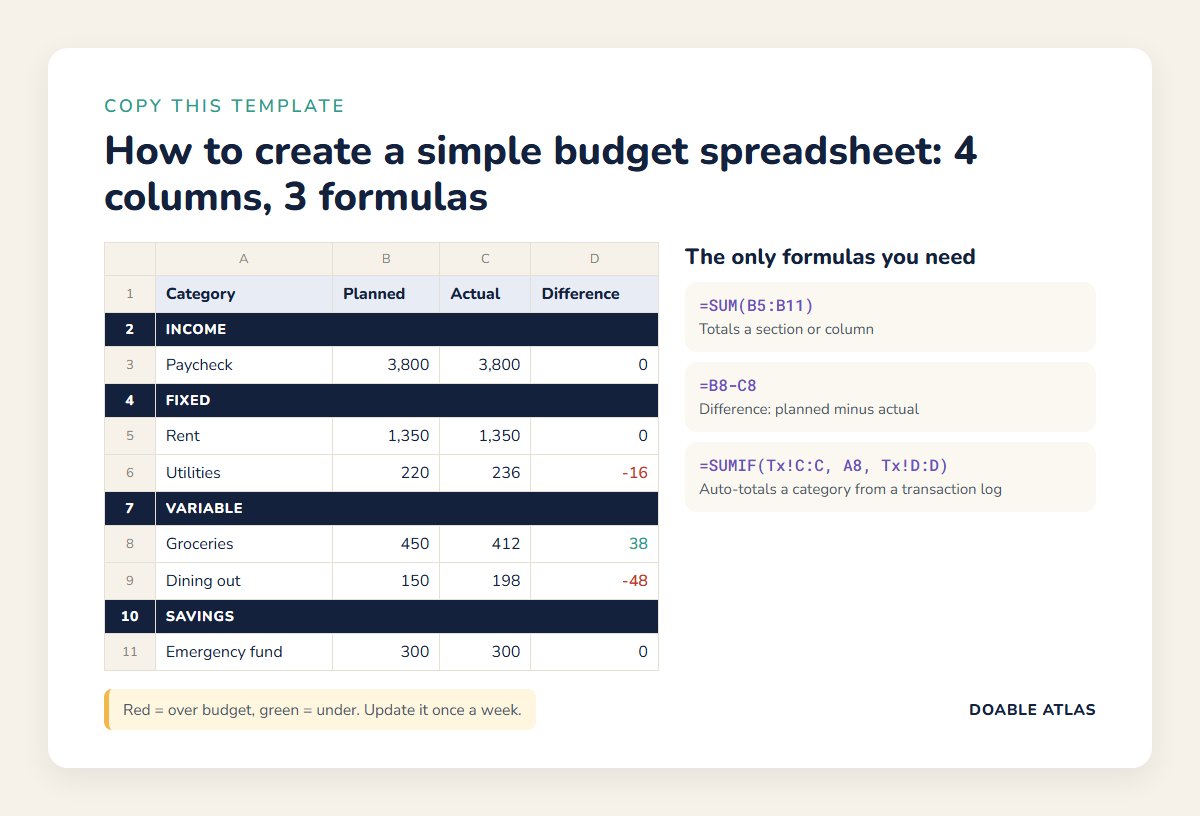
If you want to see how to create a simple budget spreadsheet in practice, here is how a simple monthly budget might look once it is filled in. The numbers are made up for illustration; use your own.
| Category | Planned | Actual | Difference |
|---|---|---|---|
| INCOME | |||
| Paycheck | $3,800 | $3,800 | $0 |
| FIXED | |||
| Rent | $1,350 | $1,350 | $0 |
| Utilities & internet | $220 | $236 | -$16 |
| VARIABLE | |||
| Groceries | $450 | $412 | $38 |
| Dining out | $150 | $198 | -$48 |
| SAVINGS | |||
| Emergency fund | $300 | $300 | $0 |
Your 30-minute setup timeline
If you prefer a clock to follow, here is a realistic way to split your first session:
- Minutes 0 to 5: create the file, name the tab, add the four column headers, bold and freeze row 1.
- Minutes 5 to 10: enter your take-home income and add the total formula.
- Minutes 10 to 18: list fixed expenses from your bills and bank statements.
- Minutes 18 to 25: estimate variable expenses using the last one to three months of statements.
- Minutes 25 to 30: add savings lines, totals, the Difference formula, and basic color formatting.
That is it. You do not need to perfect the numbers in the first session. The purpose of the first month is to learn what your real spending looks like. By month three, most people find their planned numbers are accurate enough to make confident decisions, such as how much they can put toward a goal or which costs to cut first.
Choose a budgeting method for your spreadsheet
Knowing how to create a simple budget spreadsheet is only half the job. The spreadsheet is the tool; a budgeting method is the rule you use to fill it in. Here are three popular approaches. Pick the one that fits how you think.
The 50/30/20 approach
This popular guideline splits take-home pay into roughly 50 percent for needs, 30 percent for wants, and 20 percent for savings and debt repayment. The Consumer Financial Protection Bureau uses this needs, wants, and goals split in some of its financial education materials (CFPB). It is simple, but in high-cost areas, needs can easily exceed 50 percent, so treat the numbers as a starting point rather than a rule.
To use it in your spreadsheet, add a small summary box with three formulas: total needs, total wants, and total savings, each divided by total income to show a percentage.
Zero-based budgeting
With zero-based budgeting, you assign every dollar of income to a category, including savings, until your “Left to budget” cell reaches exactly zero. It takes a bit more effort but gives you a clear plan for all of your money.
Pay yourself first
Here you decide on a savings amount, move it as soon as you get paid, and then budget the rest freely. It is a good option if detailed tracking feels overwhelming.
Easy upgrades once you are comfortable
After learning how to create a simple budget spreadsheet and using it for a month or two, you may want a few extra features. Add them one at a time, only when they solve a real problem.
Category drop-downs
On your Transactions tab, select the Category column and add data validation (Data, then Data validation) that only allows the category names from your budget tab. Drop-down menus prevent typos such as “Grocery” vs “Groceries” that would break your SUMIF totals.
A sinking funds tab
Sinking funds are small amounts you set aside each month for known future costs: car maintenance, holidays, annual insurance, or a new laptop. Create a tab with one row per fund, the target amount, the target date, and a monthly contribution formula such as =target/months remaining. Then add those contributions to your monthly budget as savings lines.
A yearly overview
Add a tab named “Year” with months across the top and categories down the side. Link each cell to the matching total on each month’s tab. In a few months, you will be able to spot trends, such as higher utility bills in winter or a creeping takeout habit.
Simple charts
A bar chart comparing Planned vs Actual by category, or a line chart of total spending by month, can make patterns obvious at a glance. Keep charts on their own tab so your main budget stays clean.
Sharing a budget spreadsheet with a partner
Money is one of the most common sources of tension in relationships, and a shared budget spreadsheet can turn arguments into planning. A few tips:
- Build it together. Sit down for the first setup so both people agree on categories and amounts.
- Use sharing permissions. In Google Sheets, click Share and give your partner edit access. Both of you can update it from your phones.
- Include personal spending money. A set amount each person can spend without explanation reduces friction.
- Schedule a short monthly money date. Review the numbers, celebrate wins, and adjust the plan.
If money conversations tend to get tense, our guide on how to have difficult conversations offers calm, practical phrases you can use.
Budget spreadsheet vs budgeting app
Still deciding whether learning how to create a simple budget spreadsheet is worth it compared with downloading an app? Here is a quick comparison:
- Cost: spreadsheets are usually free; many apps charge a monthly or yearly fee.
- Privacy: spreadsheets keep your data where you put it; many apps ask to connect to your bank accounts.
- Automation: apps can import transactions automatically; spreadsheets need manual updates or exported statements.
- Flexibility: spreadsheets let you design anything; apps work within their own structure.
Some people use both: an app for automatic tracking and a spreadsheet for planning and big-picture review. The best tool is the one you will actually use every week.
Tips to make your budget spreadsheet stick
- Schedule a weekly money check. Fifteen minutes, same day each week. Pair it with something enjoyable, like your favorite coffee. Our guide on time blocking for beginners can help you protect that slot.
- Duplicate the tab each month. Right-click the month’s tab and choose Duplicate, rename it, and clear the Actual column. Your structure carries over.
- Add a buffer category. A “miscellaneous” line of a small amount absorbs surprises and prevents the whole budget from feeling broken.
- Plan for irregular costs. Divide yearly expenses, such as car registration or holiday gifts, by 12 and budget that amount monthly.
- Review, do not judge. Overspending in a category is information, not failure. Adjust the plan or your habits for next month.
- Keep it simple. Fewer, broader categories are easier to maintain than dozens of tiny ones.
If impulse purchases keep blowing up your Actual column, our guide on how to break a bad habit shows how to add friction to spending triggers.
Common budget spreadsheet mistakes
- Using gross pay instead of take-home pay. Budget the money that actually lands in your account.
- Forgetting irregular expenses. Annual subscriptions, car repairs, and birthdays will appear eventually.
- Setting unrealistic limits. Cutting your grocery budget in half overnight usually fails. Reduce gradually.
- Never filling in the Actual column. A plan without tracking is just a wish.
- Overcomplicating formulas. Start with SUM and subtraction. Add more only when you need it.
- Quitting after one bad month. Most people need two or three months before their planned numbers become accurate.
Frequently asked questions
What is the easiest way to create a simple budget spreadsheet?
Open Google Sheets or Excel, create four columns (Category, Planned, Actual, Difference), list your income and expenses, and use =SUM() for totals and a simple subtraction formula for the difference. That basic setup takes about 30 minutes.
Is Google Sheets or Excel better for budgeting?
Both work well. Google Sheets is free, runs in a browser, and is easy to share with a partner. Excel offers more advanced features and works well offline. The best choice is the one you already use.
How many categories should a budget have?
Most people do well with about 10 to 20 categories. Too few can hide problem areas, while too many make tracking tedious.
How often should I update my budget spreadsheet?
Weekly updates work well for most people. Daily tracking is optional, but waiting a whole month often makes it hard to remember purchases or adjust in time.
What if my income changes every month?
Budget based on a conservative estimate, such as your lowest recent month. When you earn more, direct the extra toward savings or a buffer that covers leaner months.
Your next step
You now know how to create a simple budget spreadsheet that fits your life: four columns, a few sections, a handful of formulas, and a weekly check-in. Open a blank spreadsheet today, set up the headers, and fill in just your income and fixed expenses. That alone takes about ten minutes and gives you a clearer picture of your money than most people ever have.
Next week, add your variable expenses and start tracking. After two or three months, your spreadsheet will be one of the most useful tools you own.