

You know the file is somewhere. It might be in Downloads, on the desktop, in an email attachment or in a folder called “New folder (3).” Ten minutes later you are still searching, and you end up downloading it again. Digital clutter is invisible, which is exactly why it grows until it gets in the way.
This guide shows you how to organize digital files with a simple system that works on Windows, Mac and cloud storage: a folder structure you can set up in an afternoon, a naming rule that makes files easy to find, a clean-up plan for the mess you already have and a few small habits that keep it tidy without effort.
Quick answer
How to organize digital files: create a small set of top-level folders (for example Home, Money, Work, Health, Media and Archive), keep folders no more than three levels deep, name files with a date in year-month-day order plus a clear description, empty your Downloads folder and desktop weekly, store everything in one main location that syncs and is backed up, and archive finished projects instead of keeping them in active folders.
In this guide
Why digital files get out of control
Paper clutter is easy to see. Digital clutter hides in folders you rarely open, so it builds quietly. A few common causes:
- Everything lands in Downloads and never moves.
- The desktop becomes a to-do list of half-finished files.
- Files are spread across many places: your computer, phone, email, a cloud drive and a USB stick.
- Names mean nothing later: “scan001.pdf,” “document final FINAL.docx.”
- No decision point: files are saved wherever the app suggests.
The fix is not a perfect filing system. It is a simple one you will actually follow. Learning how to organize digital files is mostly about deciding a few rules once, so you do not have to think every time you save.
Step 1: Pick one home for your files
Before building folders, decide where your files will live. Scattered storage is the biggest cause of lost files.
- Choose one main location: usually a cloud drive that syncs to your computer, such as Google Drive, OneDrive, iCloud Drive or Dropbox.
- Use the synced folder on your computer as your Documents area, so the same structure appears on every device.
- Treat everything else as temporary: Downloads, the desktop, email attachments and USB sticks are inboxes, not homes.
Remember that sync is not a full backup. If you delete a file, sync deletes it everywhere. Our guide on how to back up your phone explains the 3-2-1 rule, which applies to your computer files too.
Step 2: Create a simple folder structure
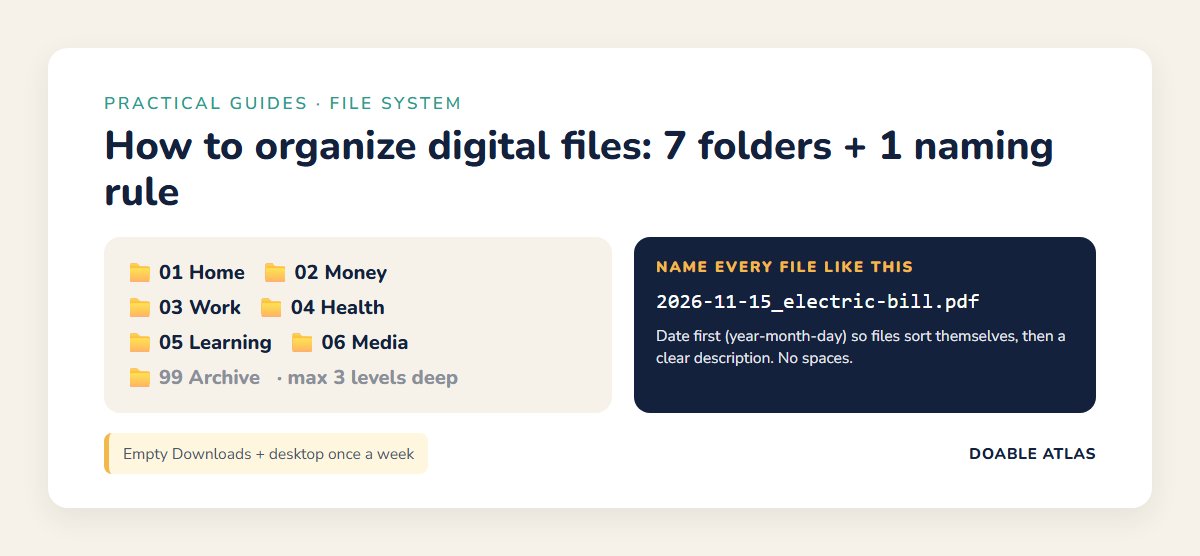
The best structure is shallow and boring. Start with six to eight top-level folders based on the areas of your life, not on file types.
| Top-level folder | What goes inside | Example subfolders |
|---|---|---|
| 01 Home | House, car, family, pets | Lease, Car, Appliances, School |
| 02 Money | Banking, taxes, bills, insurance | Taxes 2026, Insurance, Receipts |
| 03 Work | Job, clients, career | Projects, Resume, Training |
| 04 Health | Medical records, prescriptions | Doctor visits, Vaccines, Dental |
| 05 Learning | Courses, notes, ebooks | Spanish, Photography |
| 06 Media | Photos and videos you keep | 2025, 2026 |
| 99 Archive | Finished projects and old years | Work 2024, Old apartment |
Numbering the folders (01, 02, 99) keeps them in a fixed order instead of alphabetical, and puts Archive at the bottom where it belongs.
The three-level rule
Try to keep folders no more than three levels deep: Money > Taxes 2026 > Receipts. Deeper structures feel organized but slow you down, because every save requires a long click path. When in doubt, use fewer folders and better file names.
Step 3: Use a file naming rule
Good names make search work, even if a file ends up in the wrong folder. A naming convention is the single most powerful habit in how to organize digital files.
Use this pattern:
2026-11-15_electric-bill_november.pdf
- Date first, in year-month-day order. This international standard format (ISO 8601) sorts files in true date order automatically.
- Short, specific words: what it is, then the detail. “car-insurance_renewal,” not “important doc.”
- No spaces or special characters: use hyphens or underscores. Some systems and websites handle spaces and symbols badly.
- Versions with v01, v02: instead of “final,” “final2,” “really-final.”
| Before | After |
|---|---|
| scan001.pdf | 2026-03-02_lease_signed.pdf |
| Document1.docx | 2026-10-12_cover-letter_acme_v02.docx |
| IMG_4831.jpg | 2026-07-04_beach-trip_family.jpg |
| final FINAL budget.xlsx | 2026_budget_v05.xlsx |
You do not need to rename every photo. Phones already add dates to photo files, and photo apps sort by date. Focus naming on documents you will need to find again.
Step 4: Clean up the mess you already have
Do not try to sort ten years of files in one weekend. Use a fresh-start approach instead:
- Create a folder called “00 Unsorted.”
- Move everything messy into it: old desktop files, the contents of Downloads, random folders.
- Set up your new structure and use it from today.
- Sort the unsorted folder in 20-minute sessions, starting with the most recent files.
- When you stop needing the unsorted folder (say, after three months), move what is left into Archive.
This way you get the benefits of a clean system immediately, without waiting until the backlog is finished. It is the same idea as declaring email bankruptcy in our guide on how to manage email overload.
Find and remove duplicates and space hogs
- Sort by size to find huge videos, old installers and disk images you no longer need.
- Delete installers (.exe, .dmg, .pkg files) after the program is installed. You can download them again.
- Search for “copy” or “(1)” to find obvious duplicates.
- Check storage tools: Windows has Storage settings and Storage Sense (Microsoft Support), and macOS shows storage recommendations in System Settings.
Step 5: Tame the Downloads folder and desktop
These two places cause most digital clutter. Treat them like an inbox: things arrive, then get moved or deleted.
- Empty Downloads once a week. Move what you need, delete the rest.
- Keep the desktop for today only. At the end of the day, file or delete what is there.
- Change where files save: many browsers let you choose a download folder or ask each time, which forces a decision.
- Use automatic cleanup carefully: Windows Storage Sense can remove old files from Downloads on a schedule; turn it on only after you understand what it deletes.
Step 6: Archive instead of hoarding in active folders
Active folders should hold only what you use now. When a project ends or a year closes, move it into Archive with a clear name such as “Work 2025” or “Wedding planning 2024.”
- Archived files stay searchable.
- Your everyday folders stay short and fast to scan.
- At tax time, you know exactly where last year’s records are.
For how long to keep financial records, check official guidance. The IRS, for example, explains common record retention periods for tax documents (IRS).
How to organize digital files on Windows
- Pin your main folders to Quick Access in File Explorer for one-click access.
- Use the search box in File Explorer; good file names make it far more useful.
- Turn on OneDrive folder backup for Desktop, Documents and Pictures if you use OneDrive, so those folders sync automatically.
- Show file extensions (View options) so you can tell a PDF from a Word file at a glance.
How to organize digital files on a Mac
- Add favorite folders to the Finder sidebar by dragging them there.
- Use tags sparingly, for example a red “Action” tag for files that need attention.
- Try Smart Folders, which show files matching a search, such as all PDFs from this month, without moving them.
- Turn on iCloud Desktop and Documents if you want those folders available on all your Apple devices.
Organizing files on your phone
Phones hold more documents than ever: boarding passes, tickets, scanned receipts and PDFs from email.
- Save documents to your cloud drive app, not just to the phone, so they appear in your main folder structure.
- Use the same top-level folders on your phone’s Files app as on your computer.
- Scan paper straight into the right folder using your phone’s built-in scanner, then name the file using your naming rule.
- Clear screenshots monthly: they pile up fast and are often no longer needed.
How to organize digital files: your checklist
Print this or save it as a note. It sums up how to organize digital files in four time blocks, from the one-time setup to the yearly review.
Pick one home folder. Create 6–8 top-level folders. Make “00 Unsorted.” Write your naming rule on a sticky note.
Save new files to the right folder with a good name. Clear the desktop at day’s end.
Empty Downloads. Sort 20 files from “00 Unsorted.”
Archive last year. Delete what you no longer need. Check backups work.
Common mistakes when learning how to organize digital files
Most people who give up on a filing system make one of these mistakes. Avoiding them is as important as the setup itself.
- Too many folders: if you hesitate when saving, simplify.
- Folders by file type: “PDFs” and “Word docs” tell you nothing about what is inside. Organize by topic.
- Keeping everything forever in active folders: archive regularly.
- Relying only on sync: keep a separate backup.
- Saving sensitive files unprotected: tax returns and ID scans deserve strong passwords and two-step verification on your cloud account. See our guide on how to create strong passwords.
Myths vs facts
How to organize digital files you share with others
Shared folders for family or work need a few extra rules, because more people means more ways for things to get messy.
- Agree on the folder structure before anyone starts adding files.
- Write the naming rule in a short “README” file at the top of the shared folder.
- Use one owner per folder who tidies it once a month.
- Share links instead of attachments so there is only one current version of each file.
- Review sharing permissions once a year and remove people who no longer need access.
Your important documents folder
Some files matter far more than others. If your laptop died tomorrow, these are the ones you would need fast. Keep them together in a clearly named folder, such as “02 Money > Important documents,” and make sure it is backed up.
| Category | Examples to scan and save |
|---|---|
| Identity | Passport and driver’s license copies, birth certificate |
| Home | Lease or deed, home insurance policy, appliance warranties |
| Money | Recent tax returns, account statements, loan documents |
| Health | Insurance cards, vaccination records, prescriptions list |
| Vehicles | Title, registration, insurance, service records |
Because these files are sensitive, protect the account they live in with a strong passphrase and two-step verification, and avoid emailing them unencrypted. Keep the originals of legal documents in a safe place too; a scan is a convenient copy, not always a legal replacement.
What about photos?
Photos are usually the largest and most precious part of your files, and they need a slightly different approach than documents.
- Let one photo app be the home: Google Photos, iCloud Photos or OneDrive Photos sort images by date automatically.
- Use albums for events, not folders, so a photo can belong to several albums without being copied.
- Delete in batches: blurry shots, duplicates and screenshots. A few minutes a month prevents a huge backlog.
- Export a yearly copy of your favorite photos to an external drive as an extra backup.
A 30-day plan to organize digital files
If the whole job feels overwhelming, spread it over a month. Each week has one focus and takes only a few short sessions.
| Week | Focus | Done when |
|---|---|---|
| 1 | Choose one home, create folders, make “00 Unsorted” | New files go straight into the new structure |
| 2 | Desktop and Downloads to zero | Both are empty at the end of the week |
| 3 | Important documents folder and backup | Key records are scanned, named and backed up |
| 4 | Sort “Unsorted,” delete space hogs, archive old years | Active folders hold only current files |
By the end of the month you will know how to organize digital files as a habit, not a one-off project. Pair it with a regular planning session, such as the one in our guide on how to plan your week, so the weekly tidy-up has a fixed slot.
Free tools that help
- Built-in search: Windows Search and macOS Spotlight find files by name and often by content.
- Storage analyzers: your system’s storage settings show what is taking up space.
- Cloud drive version history: most cloud drives can restore earlier versions of a file if you overwrite it by mistake.
- Bulk rename: Windows PowerToys includes PowerRename, and macOS Finder can rename a batch of selected files at once.
- Note apps for “where is it” notes: a single note listing where important things live can save a lot of searching. See our picks for the best free note taking apps.
Frequently asked questions
What is the best way to organize digital files?
Use one main storage location, a small set of top-level folders by life area, a consistent naming rule with dates in year-month-day order and a weekly habit of emptying Downloads and the desktop.
Should I organize files by date or by topic?
Organize folders by topic and put the date in the file name. That gives you both: easy browsing by subject and automatic sorting by date.
How many folders should I have?
Start with six to eight top-level folders and keep subfolders no more than three levels deep. Add new folders only when you find yourself saving the same kind of file repeatedly.
How do I organize thousands of old files?
Move them into an “Unsorted” folder, start using your new system immediately and sort the old files in short sessions, newest first. Archive whatever is left after a few months.
Is it better to store files locally or in the cloud?
A synced cloud folder is convenient because it works across devices, but it should be paired with a separate backup, such as an external drive, so a deletion or account problem does not wipe out everything.
How often should I clean up my files?
Spend a minute daily saving files properly, ten minutes weekly on Downloads and an hour once a year archiving and deleting. Small, regular sessions beat occasional marathons.
The takeaway
Knowing how to organize digital files comes down to a few rules decided once: one home for your files, a short list of folders, a clear naming pattern and regular tidy-ups. Once those are in place, saving a file becomes automatic, and finding it later takes seconds.
Start today with fifteen minutes: create your top-level folders, make a “00 Unsorted” folder and move your desktop into it. Tomorrow your computer will already feel lighter.