

A to-do list on a sticky note works until it does not. Tasks pile up, deadlines slip and the important things hide behind a dozen small ones. A good task app fixes that by putting everything in one trusted place, reminding you at the right time and showing you what actually matters today.
You do not need a subscription to get there. This guide compares the best free task management apps for personal life, work and small teams, explains what each free plan really includes, and gives you a simple daily routine so the app becomes a habit instead of another abandoned download.
Quick answer
The best free task management apps for most people are Microsoft To Do (simple personal lists), Todoist (fast capture and natural-language dates), TickTick (tasks plus a focus timer and habits), Google Tasks (built into Gmail and Calendar) and Trello (visual boards). For small teams, Asana and ClickUp have useful free plans. Apple Reminders is an excellent choice if you only use Apple devices. Choose one, set up a daily three-task routine and review weekly.
In this guide
Why a task app beats a mental to-do list
Unfinished tasks tend to nag at us. Psychologists call the tendency to remember incomplete tasks the Zeigarnik effect. The good news is that you do not have to finish a task to quiet that nagging. In a series of experiments, people who made a specific plan for an unfinished goal were less distracted by intrusive thoughts about it (Masicampo & Baumeister, 2011).
Writing tasks down even helps at bedtime. In a sleep-lab study, people who spent five minutes writing a to-do list for the next few days fell asleep faster than people who wrote about tasks they had already completed (Scullin et al., 2018).
That is the real job of the best free task management apps: give your brain permission to stop holding everything at once.
How we picked the best free task management apps
Every app on this list passed five tests:
- Usable for free long term, not a seven-day trial in disguise.
- Reminders and due dates that work on your phone.
- Sync across devices, so a task added on your laptop shows up on your phone.
- Fast capture: adding a task should take less than five seconds.
- Room to grow: lists, projects or labels when your life gets busier.
Free plans change, so use the details below as a guide and confirm on each app’s pricing page. We link to official sites throughout.
The best free task management apps compared
| App | Best for | Style | Free plan in short |
|---|---|---|---|
| Microsoft To Do | Simple personal lists | Lists + “My Day” | Completely free |
| Todoist | Fast capture, recurring tasks | Lists, projects, labels | Free plan with a limited number of projects |
| TickTick | Tasks + focus timer + habits | Lists, calendar view | Free plan; some views are premium |
| Google Tasks | Gmail and Google Calendar users | Simple lists | Completely free |
| Apple Reminders | iPhone, iPad and Mac users | Lists, smart lists | Free on Apple devices |
| Trello | Visual thinkers, shared projects | Kanban boards | Free plan for individuals and small teams |
| Asana | Small team projects | Lists, boards, calendar | Free plan for small teams |
| ClickUp | Power users who want everything | Lists, boards, docs | Free plan with storage limits |
| Any.do | Daily planning on mobile | Lists + daily planner | Free basic plan |
1. Microsoft To Do: best for simple personal lists
Microsoft To Do is clean, completely free and runs on Windows, Mac, iPhone, Android and the web. Its standout feature is My Day: each morning you pick tasks from your lists into a fresh daily view, which encourages realistic planning.
- Strengths: no paid tier to upsell, shared lists for family, steps inside tasks, reminders and repeating tasks, flagged Outlook emails can appear as tasks.
- Limits: no project boards or advanced filters; not built for team projects.
Choose it if you want a calm, simple list app and never want to hit a paywall.
2. Todoist: best for fast capture
Todoist is known for natural-language input. Type “pay rent every 1st” or “call dentist tomorrow 3pm” and it sets the date and repeat for you. It is one of the most polished options among the best free task management apps.
- Strengths: very fast quick-add, recurring tasks, priority levels, labels, filters, apps on every platform, browser and email integrations.
- Limits: the free plan caps the number of active projects and keeps some features, such as reminders on certain items and longer activity history, for paid users.
Choose it if you add lots of tasks on the go and want them dated and sorted with almost no effort.
3. TickTick: best all-in-one for focus
TickTick combines a task list with a built-in Pomodoro-style focus timer and a habit tracker. It also understands natural-language dates.
- Strengths: focus timer and habits in the same app, smart lists, quick-add from anywhere, good free feature set.
- Limits: the full calendar view and some advanced features require premium.
Choose it if you want one app for tasks, focus sessions and daily habits. Our guide on how to focus without getting distracted pairs well with its timer.
4. Google Tasks: best for Gmail users
Google Tasks lives in the side panel of Gmail and Google Calendar, plus its own mobile app. You can drag an email into Tasks to turn it into a to-do, and tasks with dates appear on your calendar.
- Strengths: free, very simple, tightly connected to Gmail and Calendar, subtasks and repeating tasks.
- Limits: no labels, priorities or boards; basic by design.
Choose it if your day already runs through Gmail and Google Calendar. It is a natural partner for the habits in our guide on how to manage email overload.
5. Apple Reminders: best for Apple users
Apple Reminders has grown into a capable task app. It supports lists, subtasks, tags, smart lists, location-based reminders, shared lists and grocery lists that sort items by category (Apple Support).
- Strengths: free, built in, works with Siri, location reminders (“remind me when I get home”).
- Limits: no native Android or Windows app.
Choose it if every device you own is made by Apple.
6. Trello: best visual board
Trello uses boards with columns, such as “To do,” “Doing” and “Done.” Each task is a card you drag across the board. It is a classic kanban tool and still one of the friendliest.
- Strengths: instantly understandable, great for shared projects such as a house move or event, checklists and due dates on cards, many templates.
- Limits: the free plan restricts some automation and advanced views, and collaboration on the free plan has limits for larger groups.
Choose it if you think visually or plan projects with other people.
7. Asana: best free plan for small teams
Asana is built for team projects. The free plan lets a small team share projects, assign tasks with due dates and switch between list, board and calendar views.
- Strengths: clear ownership of each task, comments on tasks, project templates, good mobile apps.
- Limits: timelines, reporting and automation are paid features; it can feel heavy for personal lists.
Choose it if you coordinate work with a few other people, such as a volunteer group or small business.
8. ClickUp: best for power users
ClickUp tries to do everything: tasks, docs, goals, whiteboards and many views. The free plan is feature-rich but has storage and usage limits on some features.
- Strengths: huge flexibility, many views, docs alongside tasks.
- Limits: steep learning curve; easy to over-build your setup.
Choose it if you enjoy configuring tools and want one app to replace several.
9. Any.do: best for daily planning on mobile
Any.do combines a task list with a daily planner that prompts you to review and plan your day. The free plan covers the basics: lists, reminders and a calendar view.
- Strengths: friendly mobile design, daily planning prompt, quick add.
- Limits: recurring and location reminders and some integrations are premium.
Choose it if you plan your day on your phone and like a guided routine.
Which app should you choose?
Microsoft To Do, Google Tasks or Apple Reminders.
Todoist or TickTick for fast natural-language capture.
Trello for visual boards, Asana for clear ownership.
ClickUp or Notion, if you enjoy setting things up.
Still unsure? Start with the app that is already closest to your day: Google Tasks if you live in Gmail, Microsoft To Do if you use Outlook, Apple Reminders on an iPhone. You can always move later. If you also want notes alongside your tasks, see our comparison of the best free note taking apps.
Set up your task app in 15 minutes
Most people download one of the best free task management apps, add 40 tasks and quit within a week. A lighter setup lasts longer:
- Brain dump (5 minutes): write every task you can think of into the inbox. Do not organize yet.
- Create three to five lists (3 minutes): for example Home, Work, Errands, Money and Someday.
- Sort the inbox (5 minutes): move each task into a list. Delete anything you will honestly never do.
- Add dates only to real deadlines (2 minutes): if everything has a date, nothing does.
Write tasks you can actually start
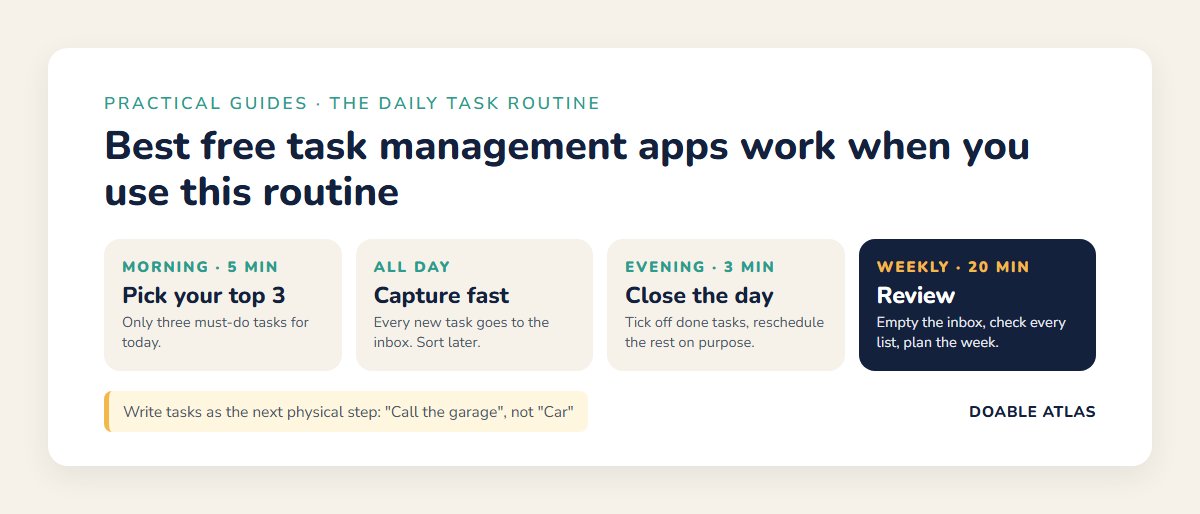
A vague task such as “taxes” is easy to avoid. Start each task with a verb and make it the very next physical step:
| Vague task | Doable next step |
|---|---|
| Taxes | Download last year’s W-2 from the payroll site |
| Car | Call the garage to book an oil change |
| Birthday party | Text three friends to pick a date |
| Get fit | Put a 20-minute walk on the calendar for Tuesday |
| Declutter | Fill one bag from the hallway closet |
A daily routine that makes it stick
The app is only half of the system. The other half is a short routine:
- Morning (5 minutes): pick your top three tasks for today. Microsoft To Do’s My Day and Todoist’s Today view are built for this.
- During the day: capture new tasks instantly into the inbox. Do not stop to organize.
- Evening (3 minutes): tick off what is done and move unfinished tasks to another day on purpose.
- Weekly (20 minutes): empty the inbox, check every list and plan the week ahead. Our guide on how to plan your week walks through it.
Put your top three tasks on your calendar as well. Giving tasks a time, as in time blocking, makes them far more likely to happen.
Prioritize with the Eisenhower matrix
When everything feels urgent, sort tasks into four boxes based on two questions: is it urgent, and is it important?
Do it today. A bill due tomorrow, a sick child, a deadline.
Schedule it. Exercise, learning, planning, relationships.
Delegate or batch it. Many calls, messages and small requests.
Delete it. Be honest about what will never matter.
Most task apps let you mimic this with priority levels or labels. Spend most of your planning time protecting the “important, not urgent” box; that is where long-term progress lives.
Common mistakes with task apps
- Too many lists: if you need to think about where a task goes, you have too many. Start with five or fewer.
- Too many daily tasks: a list of 20 tasks for today guarantees disappointment. Three priorities plus a few small ones is realistic.
- Using two apps: a task in the wrong app is a forgotten task. Keep one source of truth.
- Never reviewing: without a weekly review, lists turn into graveyards of old tasks.
- Switching apps constantly: the best free task management apps all work well enough. Consistency matters more than features.
Myths vs facts
Task app ideas for real life
For families
Create a shared “Home” list in Microsoft To Do, Google Tasks or Apple Reminders for groceries, chores and school forms. Assign tasks with names in the title if your app does not support assignment.
For students
Make one list per class and add every assignment the day it is announced, with its due date. Each Sunday, break big assignments into steps for the week.
For side projects
Use a Trello board with columns “Ideas,” “Next,” “Doing” and “Done.” Limit “Doing” to three cards so you finish before you start something new.
For money tasks
Set recurring tasks for bill reviews, subscription checks and savings transfers. A monthly “money hour” task keeps finances from sneaking up on you.
Your 2-week trial plan
| Days | What to do | Sign it’s working |
|---|---|---|
| 1–2 | Brain dump, create lists, install on phone and computer | Your head feels lighter |
| 3–7 | Morning top three, capture everything, evening check | You open the app without thinking |
| 7 | First weekly review | Inbox empty, lists current |
| 8–14 | Add recurring tasks and one shared list | Fewer “I forgot” moments |
Frequently asked questions
What is the best free task management app?
For simple personal use, Microsoft To Do is hard to beat because it is completely free. Todoist and TickTick are best for fast capture, and Trello or Asana are best for shared projects.
Is Todoist free?
Yes, Todoist has a free plan that covers core features such as tasks, due dates, recurring tasks and several projects. Paid plans add more projects, reminders and advanced features.
Is Google Tasks good enough?
For many people, yes. It is simple, free and connected to Gmail and Calendar. If you need labels, priorities or boards, choose Todoist, TickTick or Trello instead.
What is the difference between a task app and a project management tool?
Task apps focus on your personal to-do list. Project management tools such as Asana and ClickUp add team features: assigning tasks, comments, timelines and shared views.
How many tasks should I plan each day?
Plan three important tasks and a handful of small ones. If you finish early, pull more from your lists.
Should I use a paper planner instead?
Paper works well for daily planning, and some people combine a paper list for today with an app for reminders and recurring tasks. Choose whatever you will actually check every day.
The takeaway
The best free task management apps can hold every task, reminder and project you have without costing a cent. Pick one that fits your devices and style, keep your lists short, write tasks as clear next steps and protect a few minutes each morning and each week to plan.
Start right now: install one app from this list, do a five-minute brain dump and pick tomorrow’s top three tasks. That small step is the beginning of a calmer, more organized week.